Giving Access to the Student Portal
How To Give Access to the Student Portal
Learn how to distribute your custom student portal link to your members using the Market Muscles bulk messaging tool. This guide will help you manage student communication and ensure your members have quick access to their accounts.
Portal Configuration
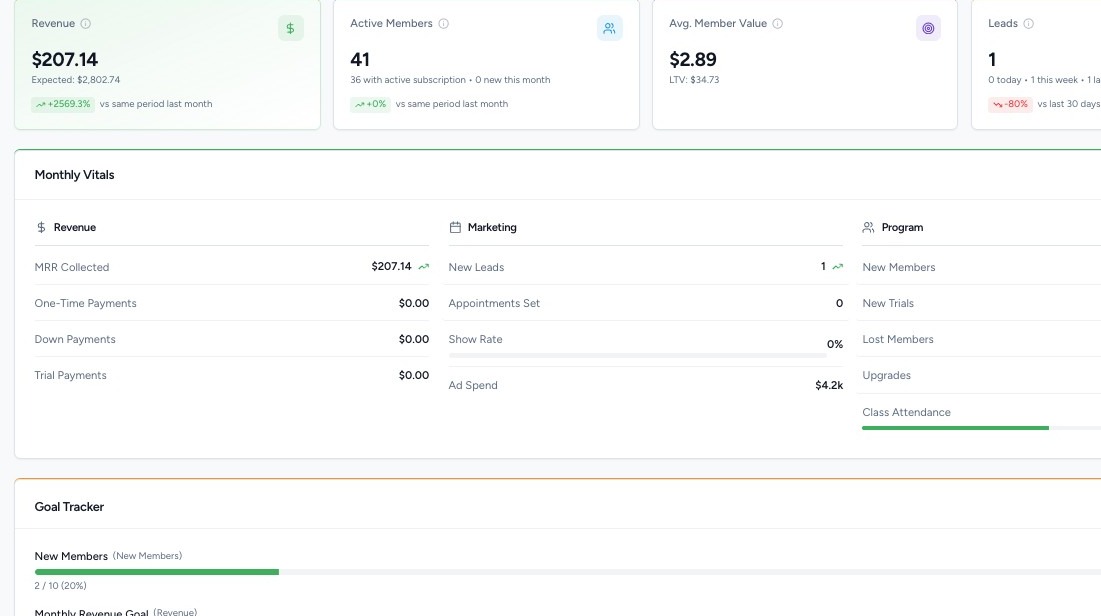
1. Navigate to your Market Muscles CRM Dashboard
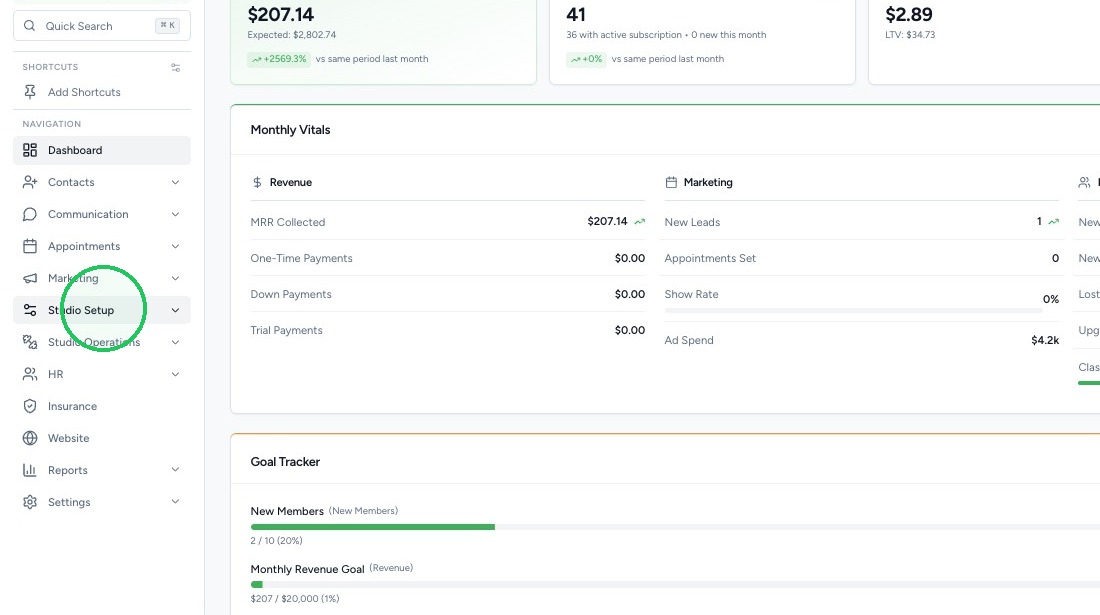
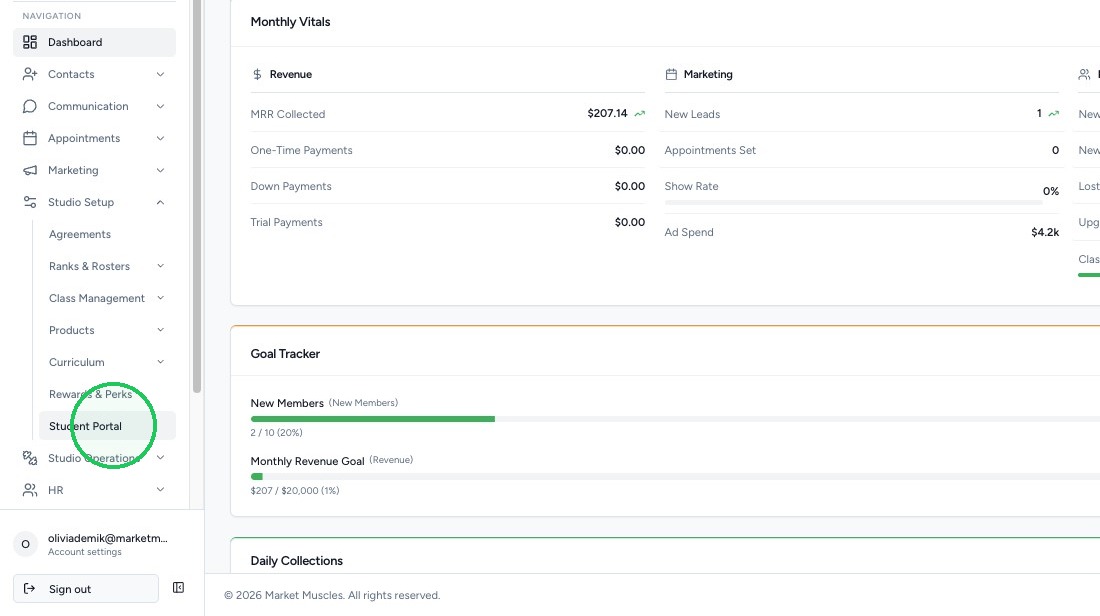
2. To access the Student Portal setting, go to Studio Setup > Student Portal
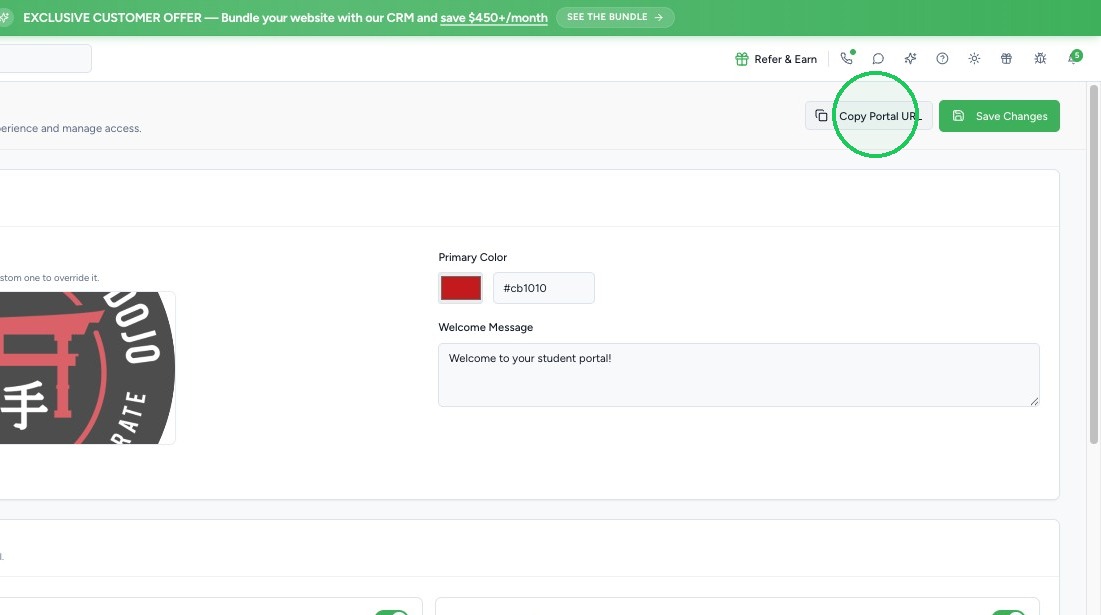
3. At the top of the Student Portal setup page, you can copy the portal invite link whenever you need. This link can be emailed, texted, or even turned into a QR code to post at your location.
Using Bulk Messaging to Send Student Portal Links
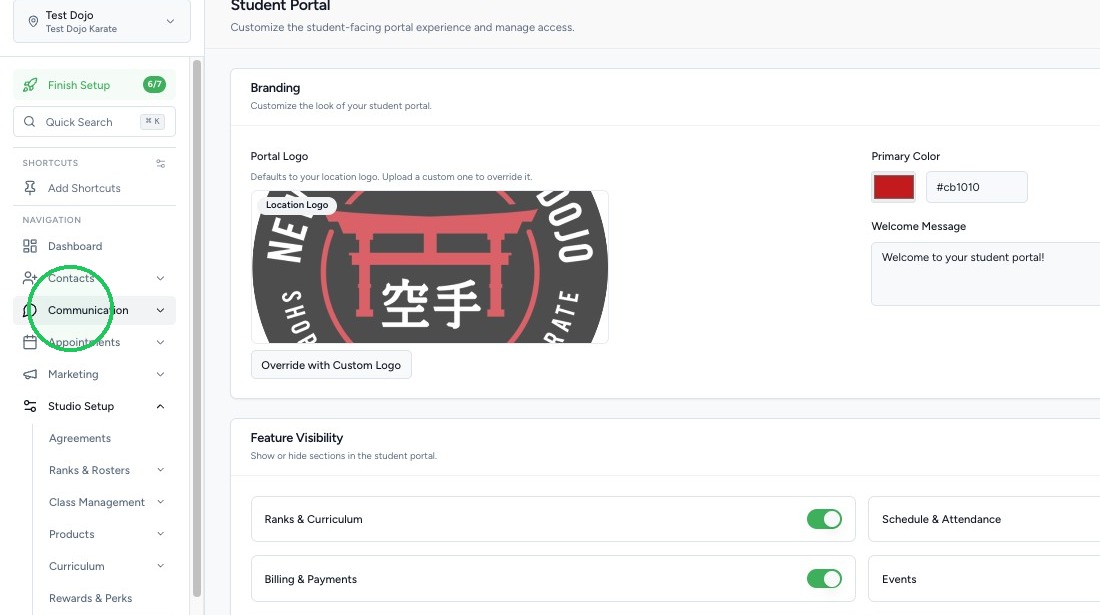
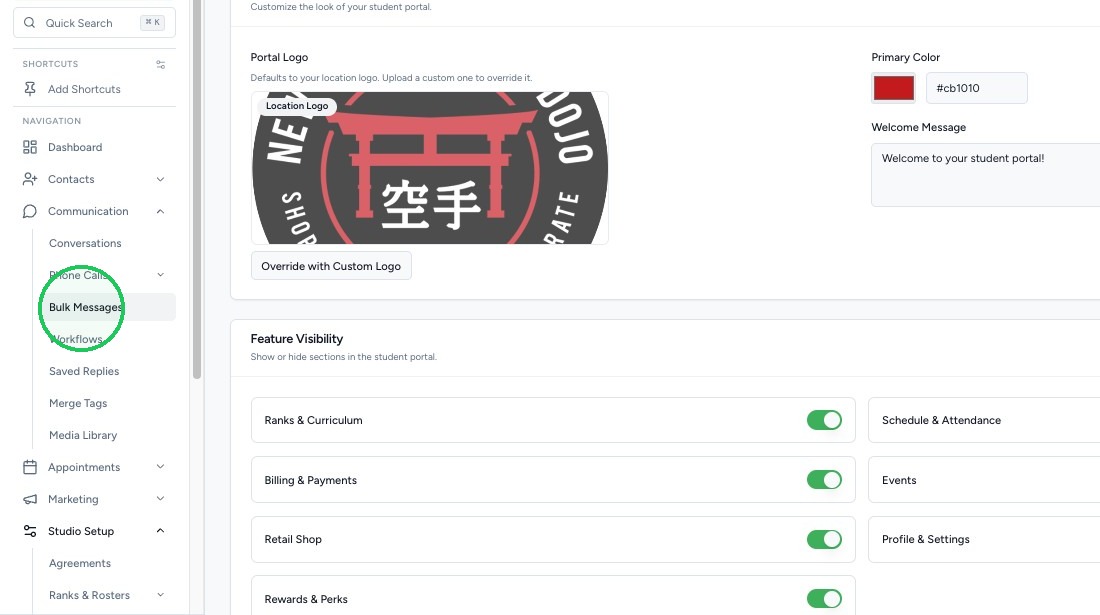
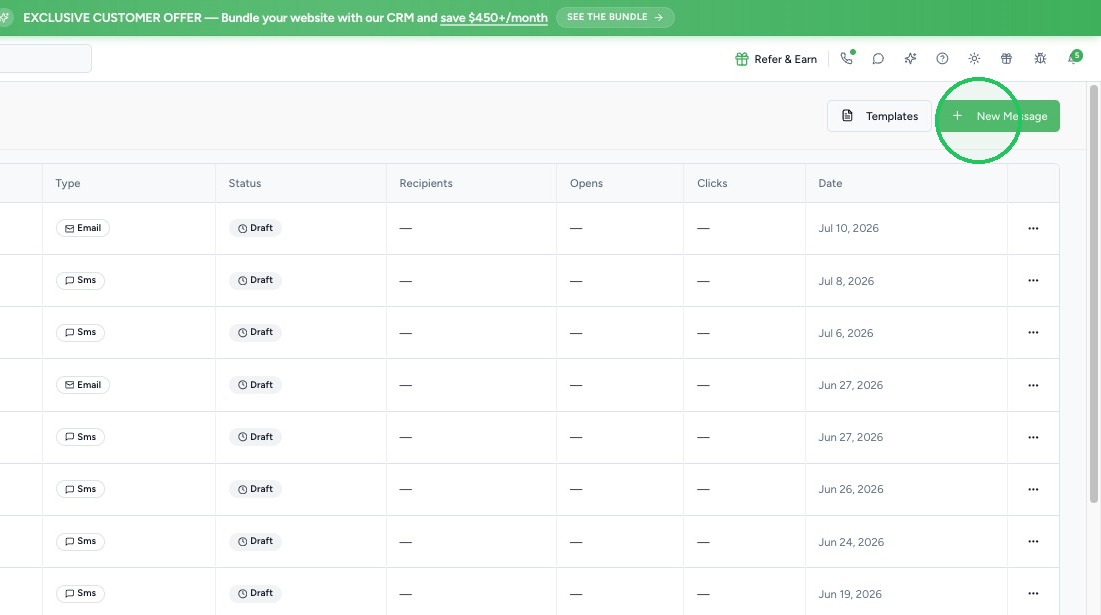
4. Go to Communication > Bulk Messages > New Message
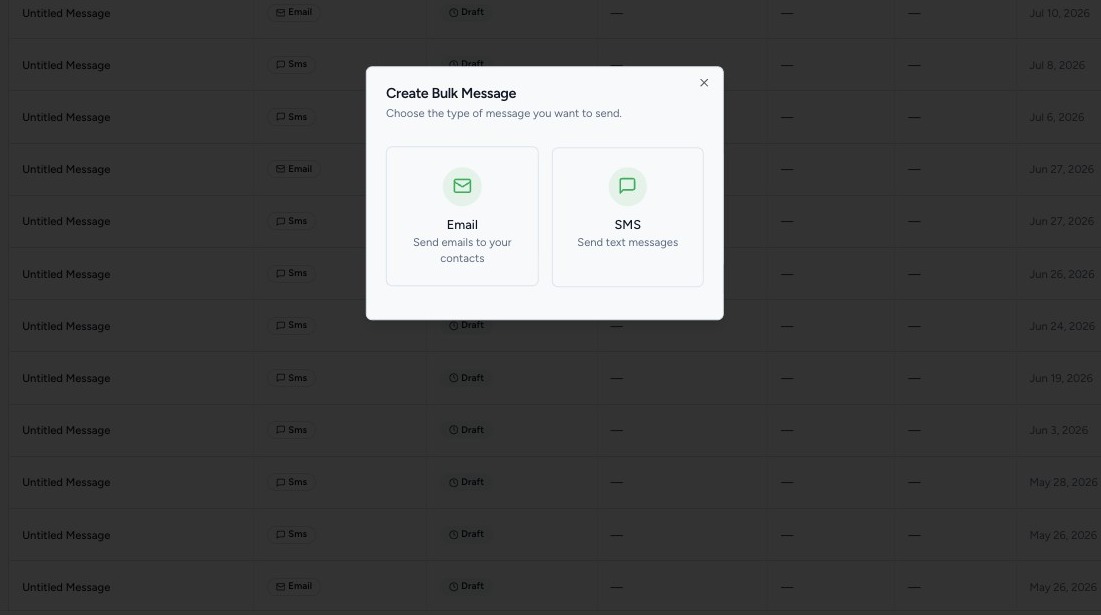
5. You can choose to send the links either via Email or SMS text messaging.
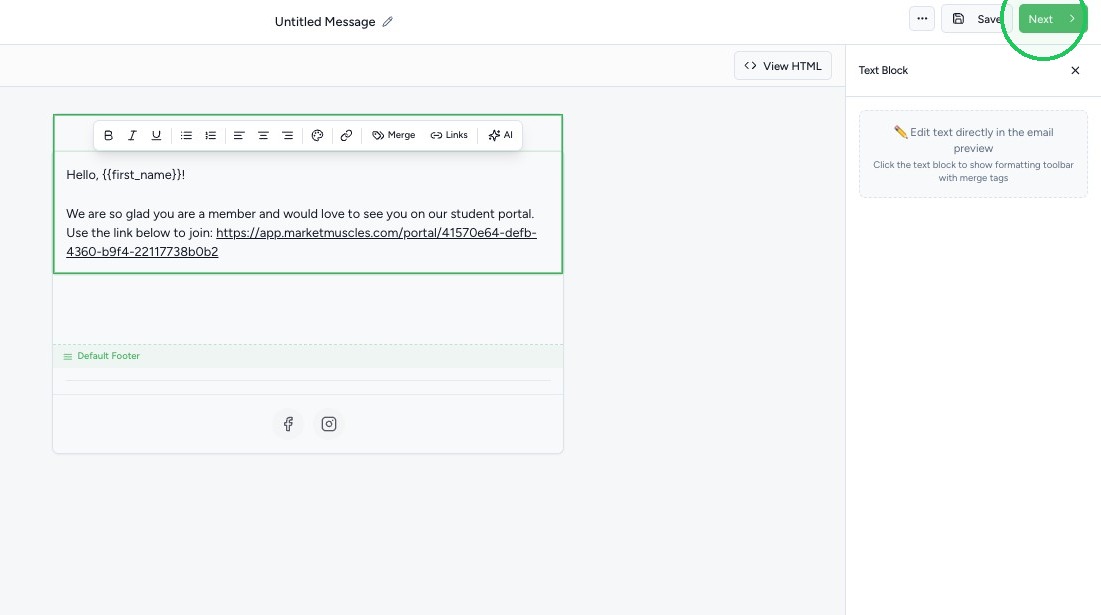
6. Once you compose your message, select Next to go to sending options.
7. For emails, you can then set your subject line and preview text.
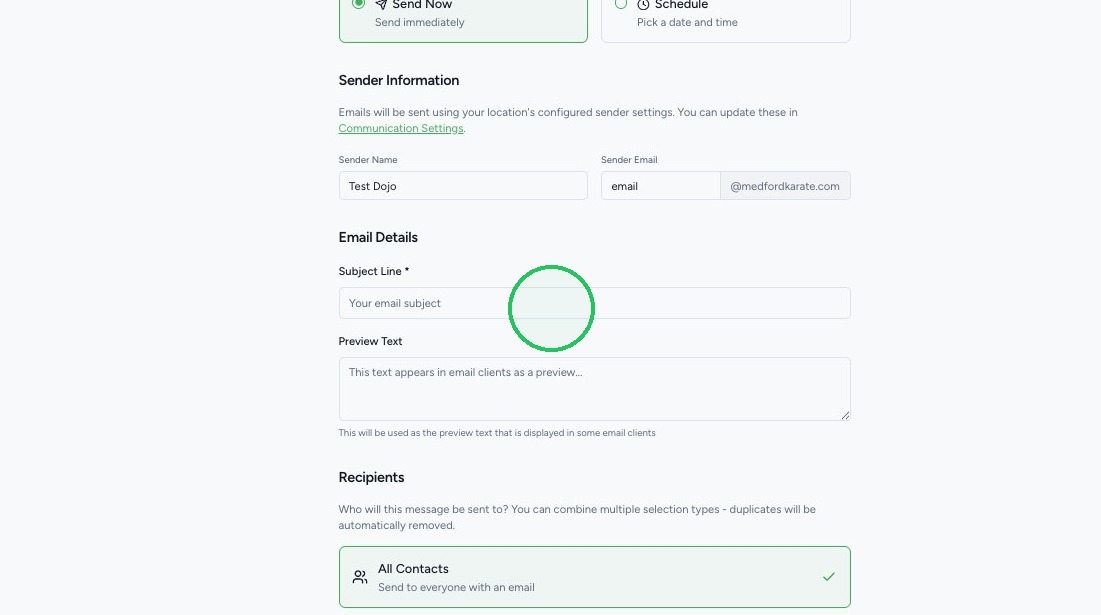
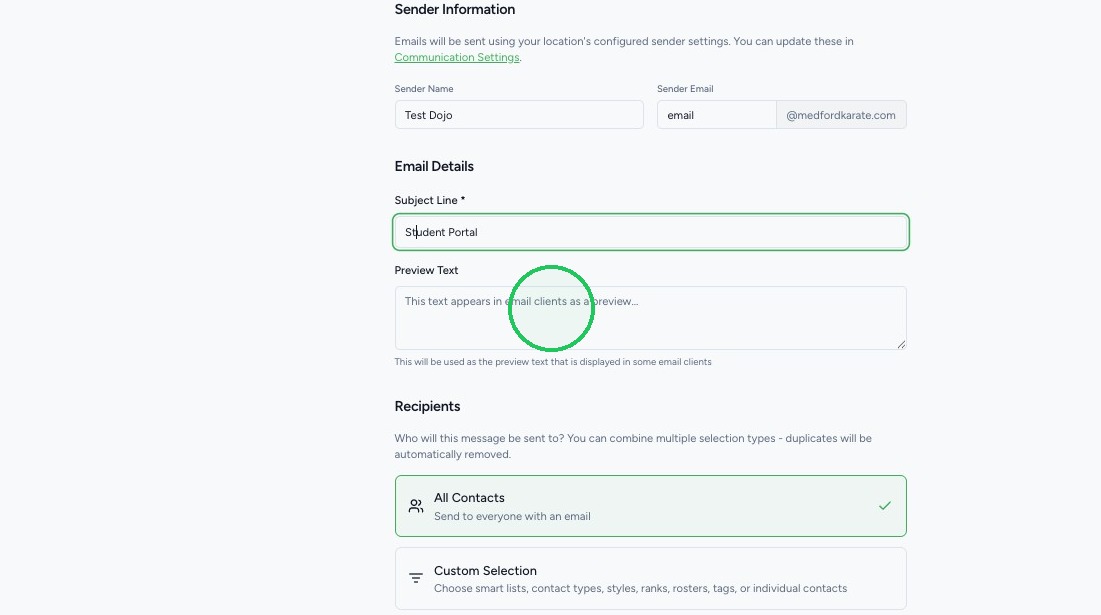
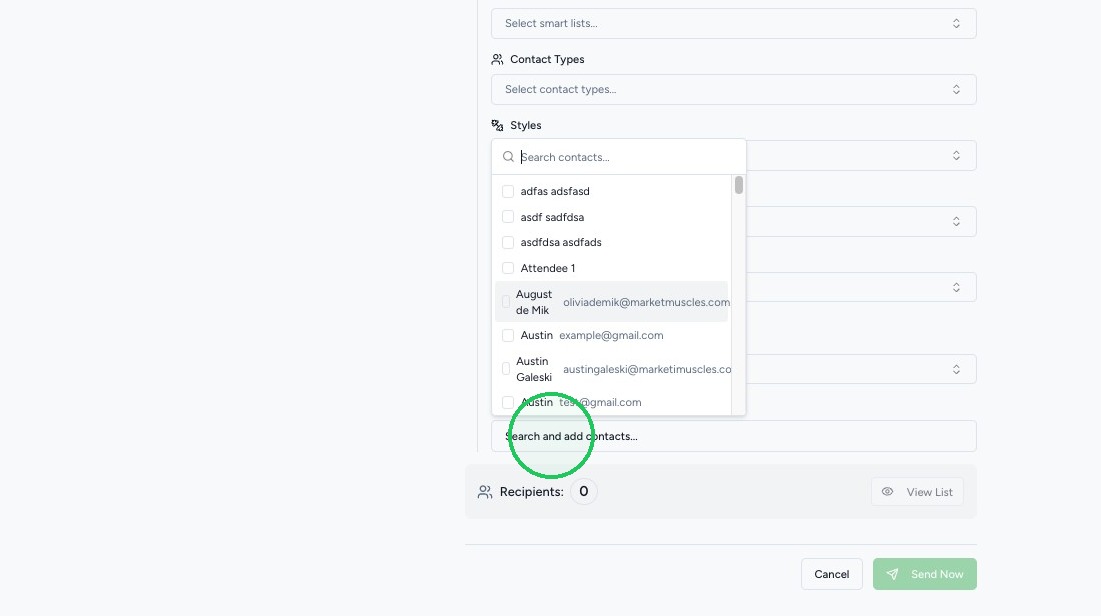
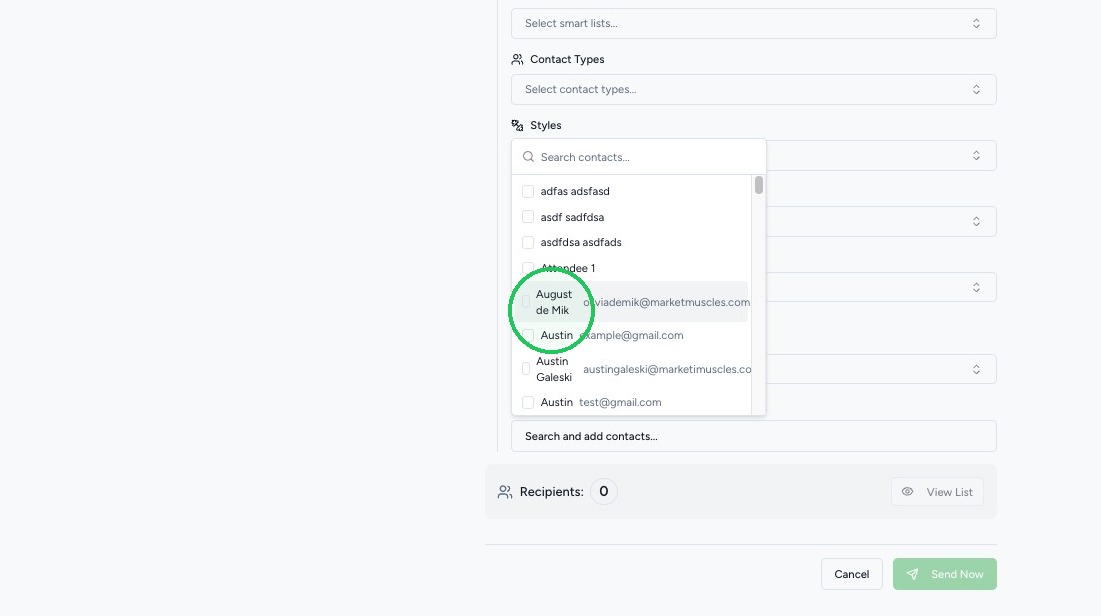
8. Search for and select the intended recipient for the message.
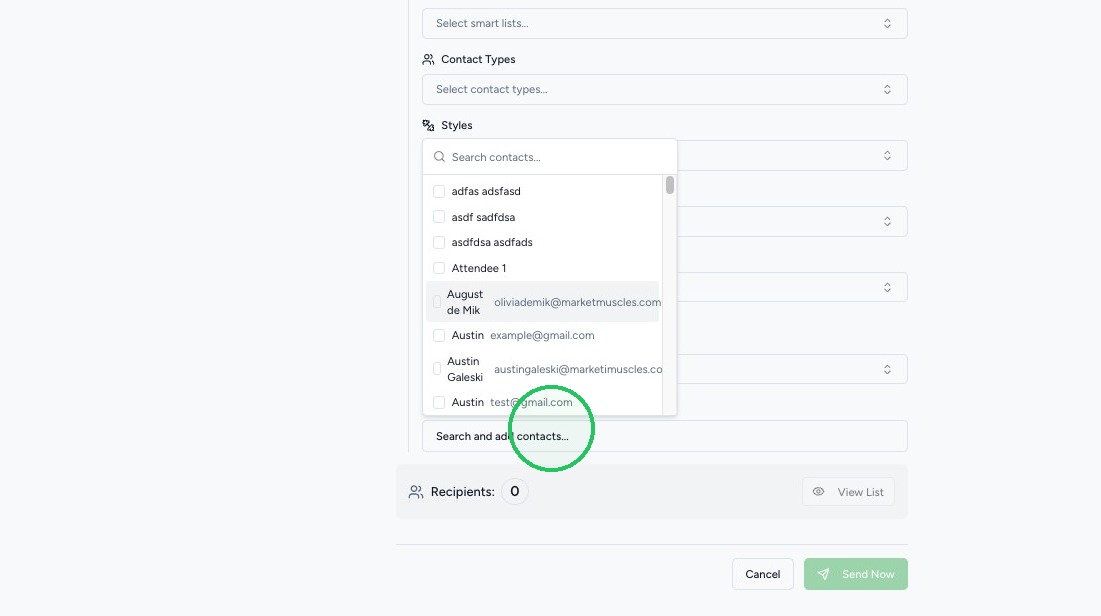
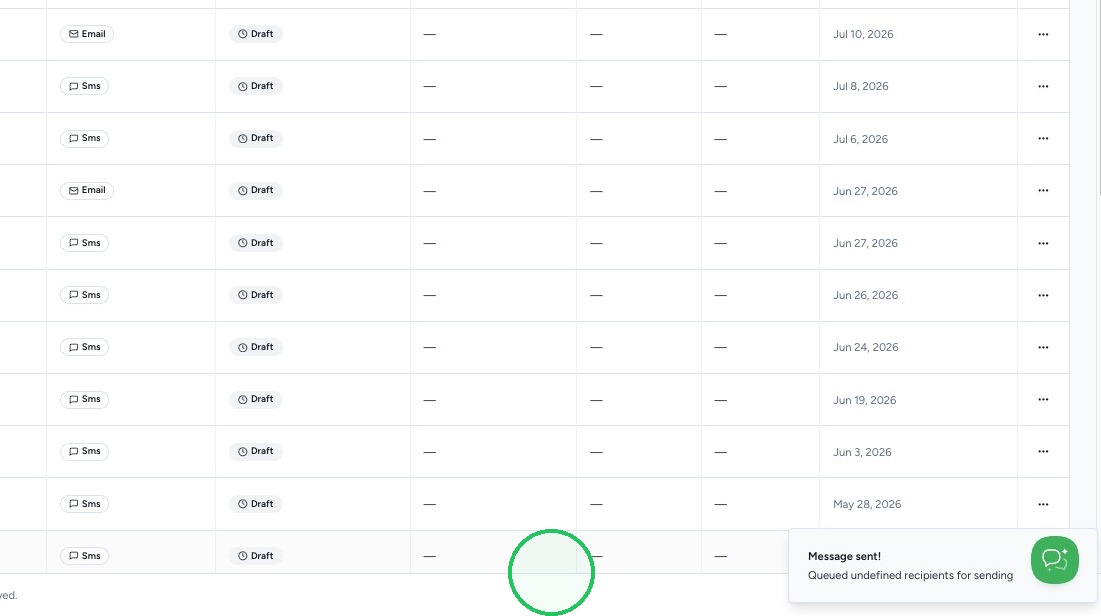
9. Click "Send Now"
Logging in to the Student Portal
10. Once the email or SMS text is sent, the client will need to click the portal link.
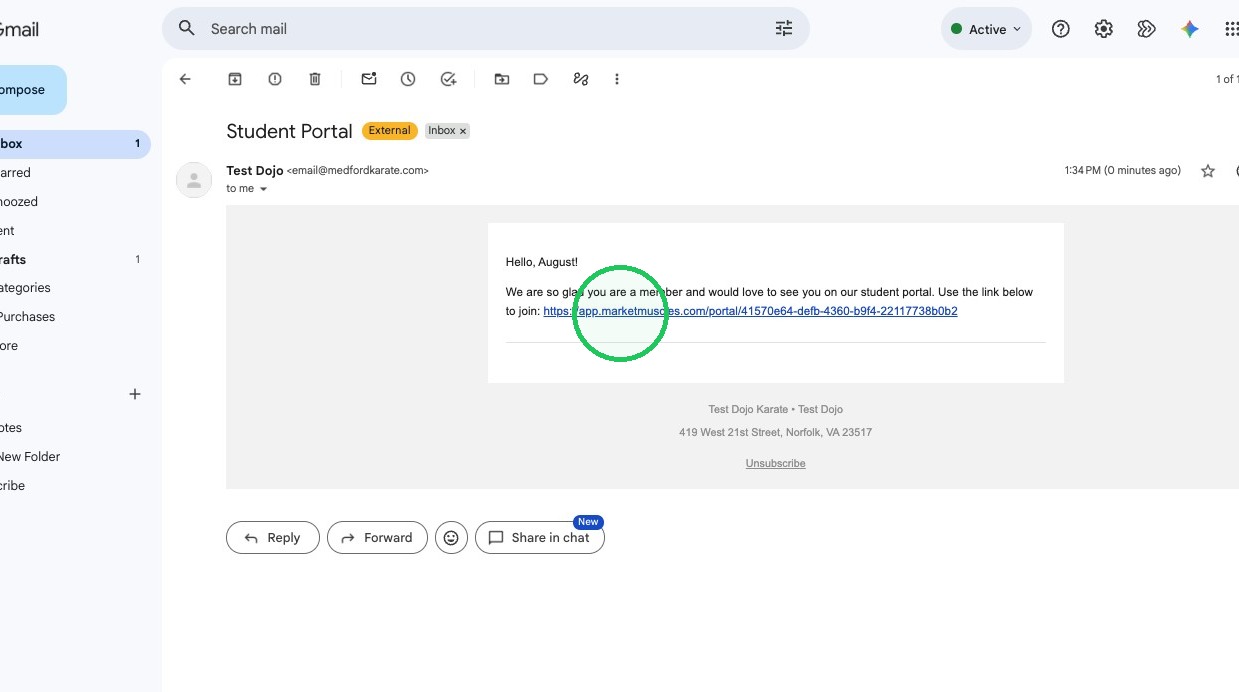
11. The first time student login to the portal, they will need to used the Magic Link. They should enter the email associated with their membership on file for your location.
After the first time, they will be able to choose the Password option to login with the email and password they will set.
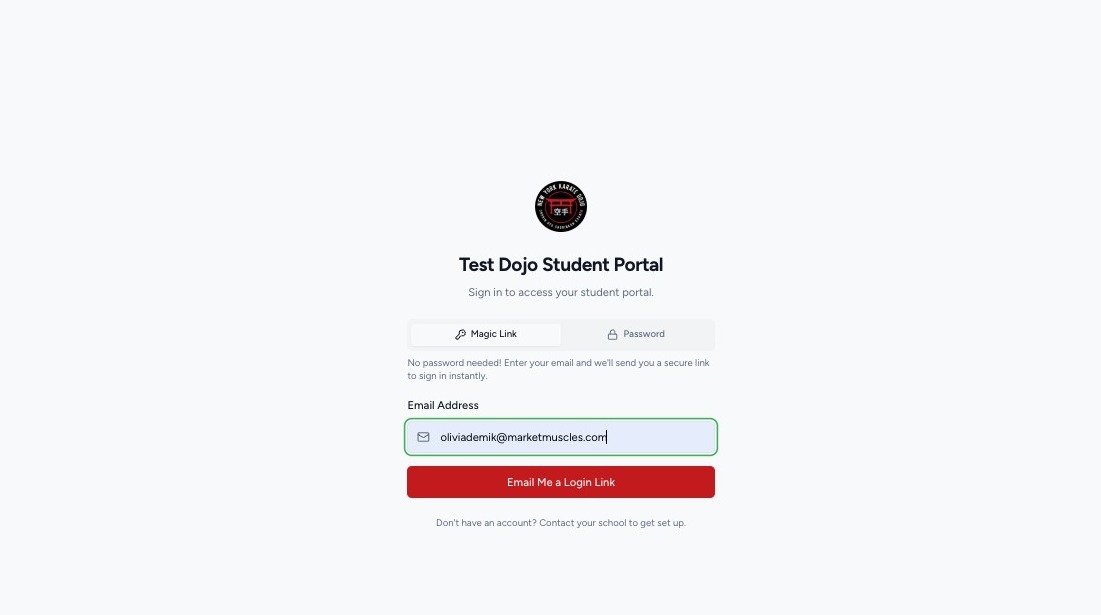
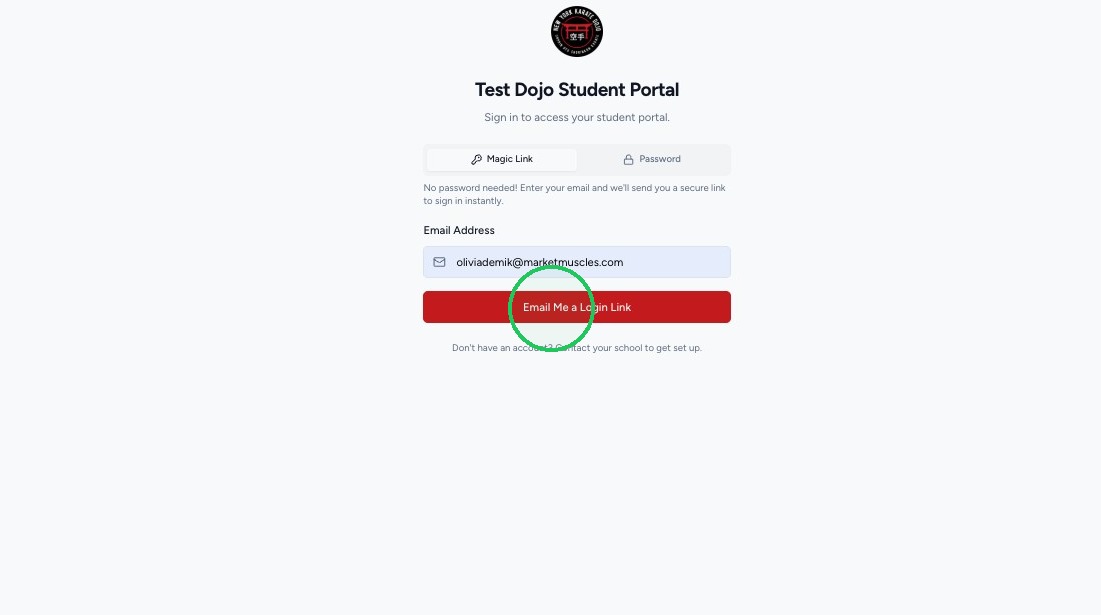
12. Once logged in through the MagicLink, they will have full access to the Student Portal.
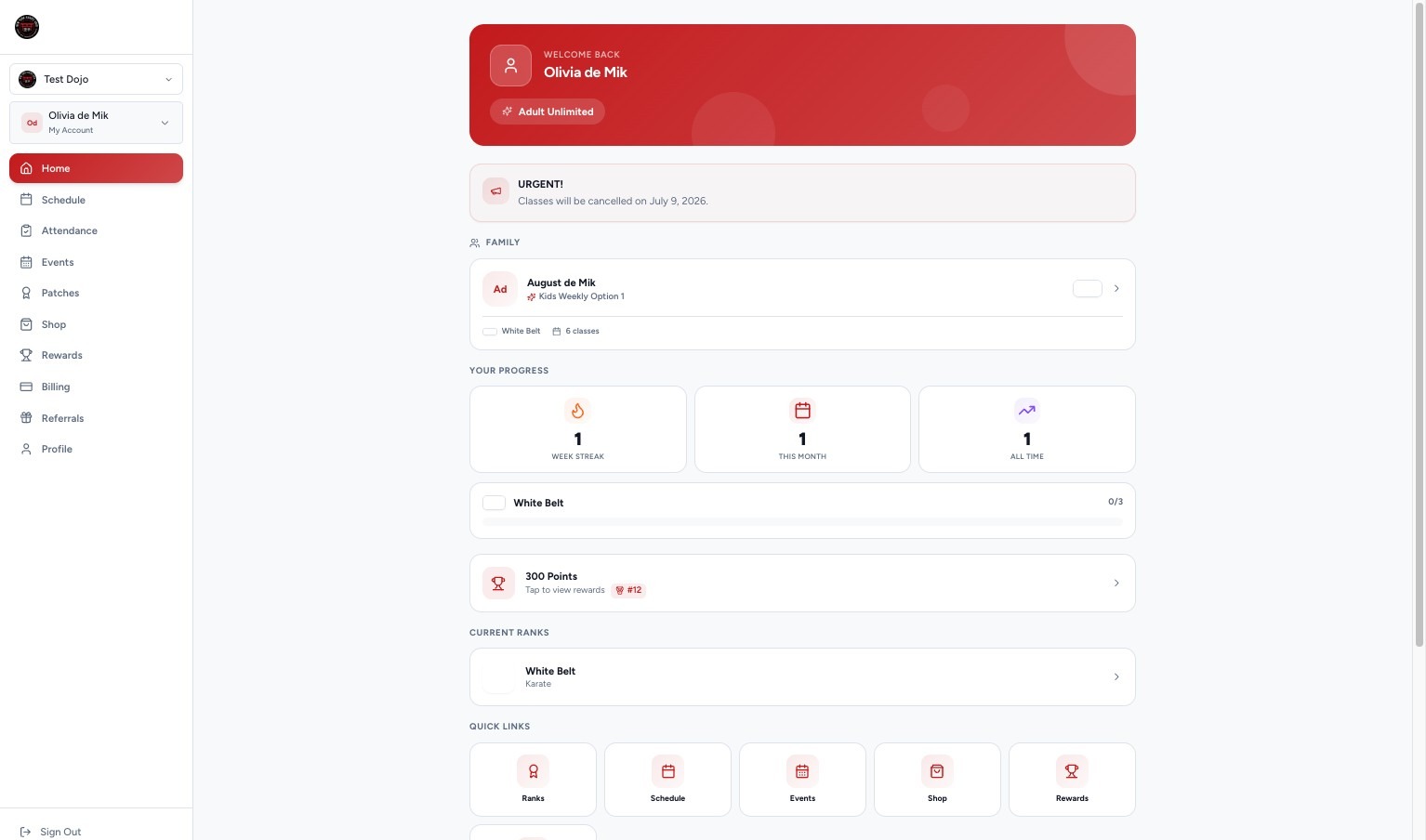
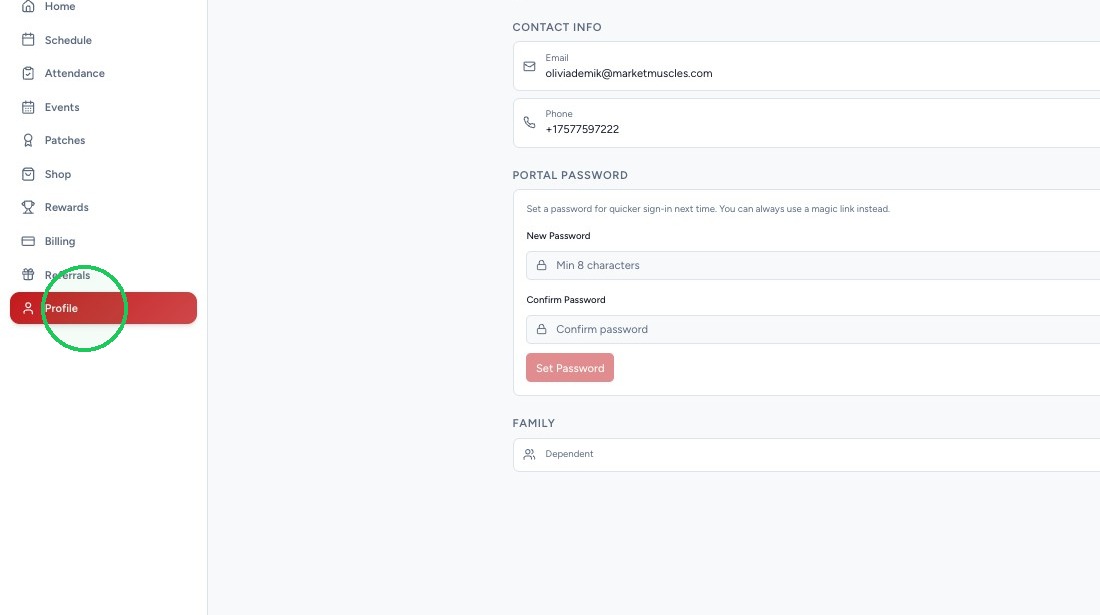
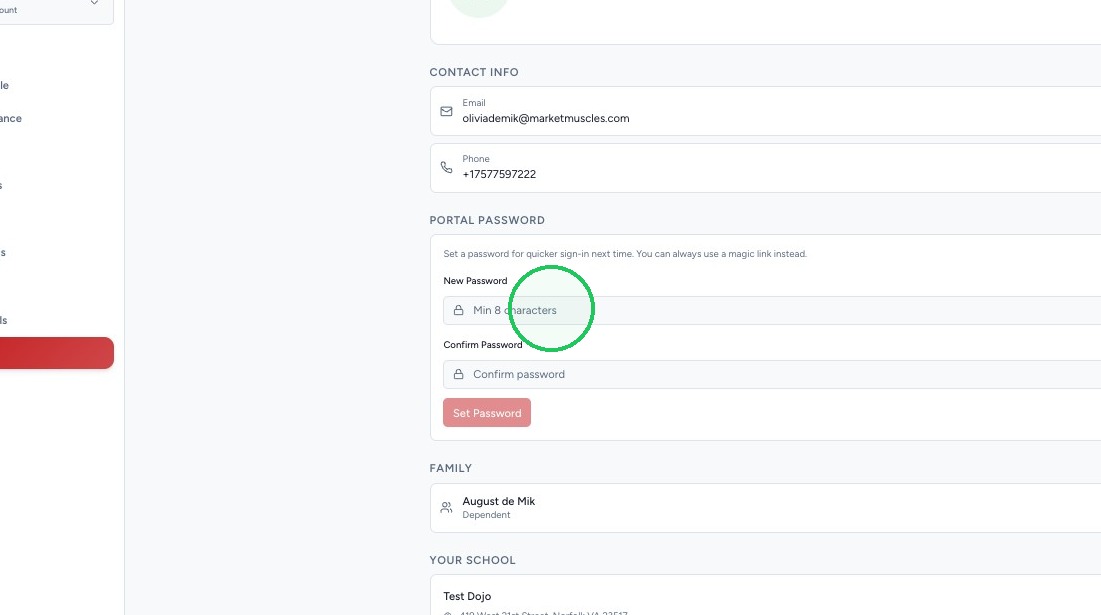
13. While they can always use the MagicLink to login, we also encourage students to go to their Profile and set a password.
This will allow them to use the Password option when logging in and will remove the need to wait for a MagicLink email verification.