Bulk Messages
How to Send Bulk Messages
Learn how to efficiently manage your communication by sending bulk Emails and SMS messages to your contacts while tracking performance and engagement. This guide walks you through creating, customizing, and scheduling your messages using the Market Muscles dashboard tools.
Message Management Navigation
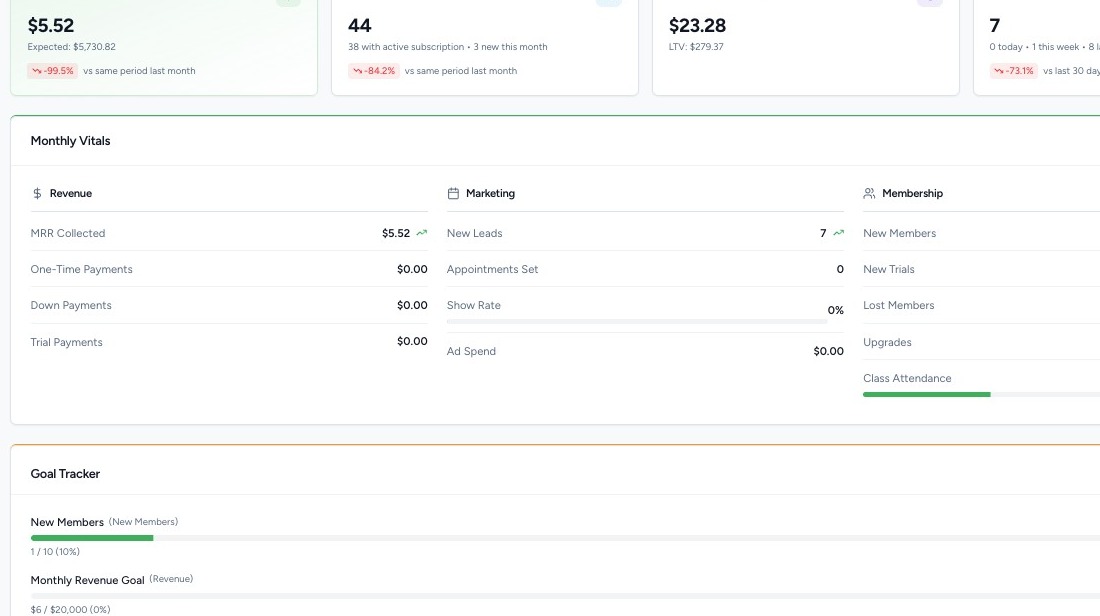
1. Navigate to your Market Muscles CRM Dashboard

2. Navigate to Bulk Messages
Click the Communication tab in the left-hand navigation menu.
Click Bulk Messages.

On this page, you will see:
- A list of previously sent bulk messages
- Message performance data
- Saved templates
- The option to create a new message
3. Review Past Bulk Messages
Click on any previously sent message to view detailed analytics.
You can see:
- Sent
- Delivered
- Opened
- Clicked
- Bounced
You can also:
- View the actual email preview
- Review when it was sent
- See which contacts received it
This allows you to track performance and engagement.
4. Manage Message Templates

At the top of the page, you will see your Templates.
You can:
- Edit existing templates
- Delete templates
- Load a template when creating a new message
- Save a new message as a template
Templates save time when sending recurring announcements or promotions.
Email Campaign Creation
5. Create a New Email Campaign

Click Create New Message.
Select Email.
You can:
- Start from scratch
- Load a saved template
- Save your message as a new template
- Send a Test Email before publishing

Build your email using:
- Subject Line
- Preview Text
- Email Body
- Merge Tags (for personalization)
6. Send Now or Schedule
Click Next.
You can:
- Send immediately
- Schedule for a future date and time
You will also see:
- Sender Name
- Sender Email (editable in Communication Settings)
Set Subject Line and customize the message Preview

7. Select Recipients

You can send to:
- All Contacts
- A specific Smart List
- By Type (Leads, Members, etc.)
- By Style
- By Belt Rank
- By Roster
- Individual Contacts
The system will:
- Show the estimated number of recipients
- Automatically remove duplicate email addresses
You can either save your draft or select send to activate the message.
SMS Campaign Configuration
8. Create a Bulk SMS Campaign

Click Create New Message.
Select SMS.
You can:
- Enter your message
- Use Merge Tags for personalization
- Attach images (if needed)
You will see:
- Character count
- SMS segment count
If your message exceeds the standard SMS length, it may count as multiple segments (which may increase cost per contact).
A preview of the SMS will appear at the bottom.
9. Send or Schedule SMS
Just like email, you can:
- Send immediately
- Schedule for later
- Choose recipients using Smart Lists, filters, or manual selection
The system will estimate total recipients and remove duplicates automatically.