
Opportunities
Utilizing the Contact Opportunities for Member Management
Learn how to navigate the Market Muscles dashboard to locate and view specific lead information. The Opportunities section is designed to help you and your staff visually track, manage, and automate your customer journey from first contact to active member.
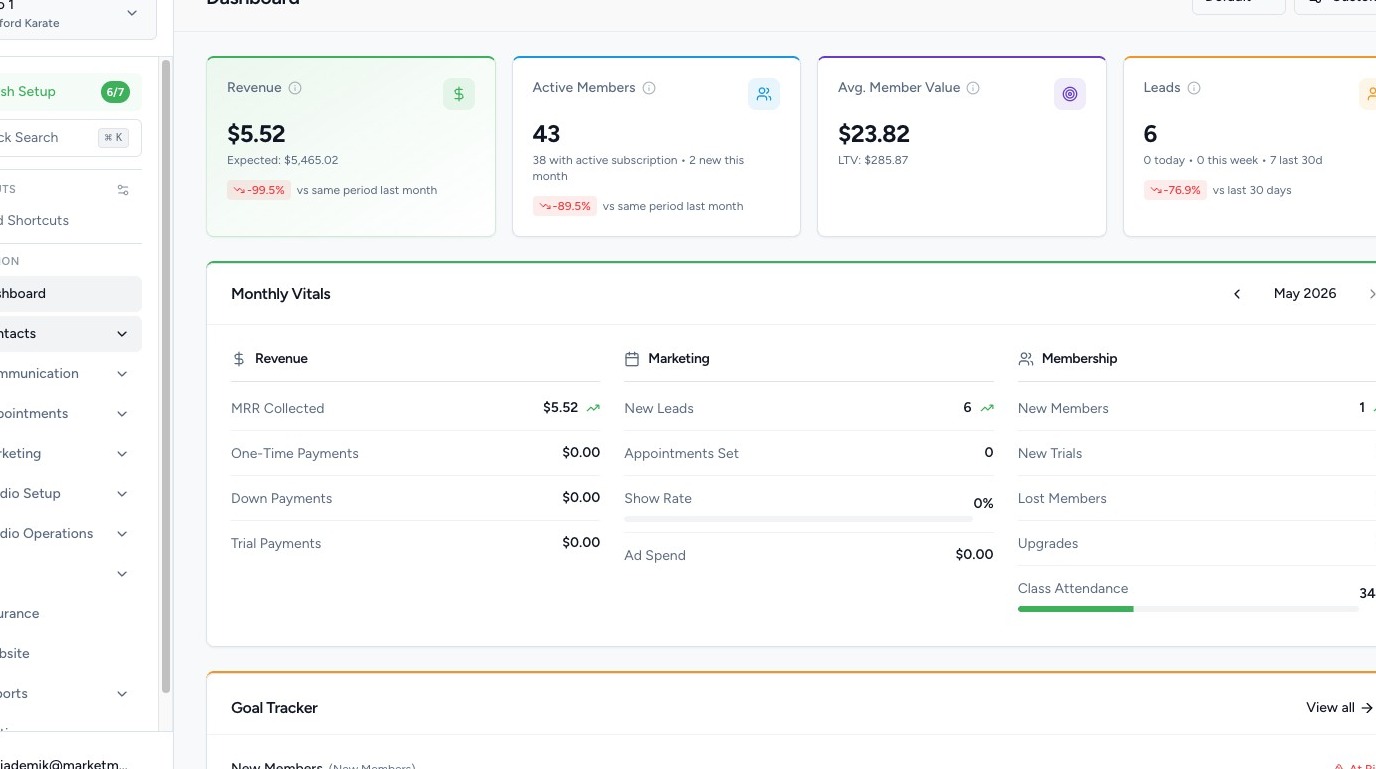
1. Navigate to your Market Muscles CRM Dashboard

2. Navigate to the Opportunities Section
Click the Contacts tab in the left-hand navigation menu.
Click Opportunities.
This section gives you a visual, drag-and-drop view of your customer pipeline.
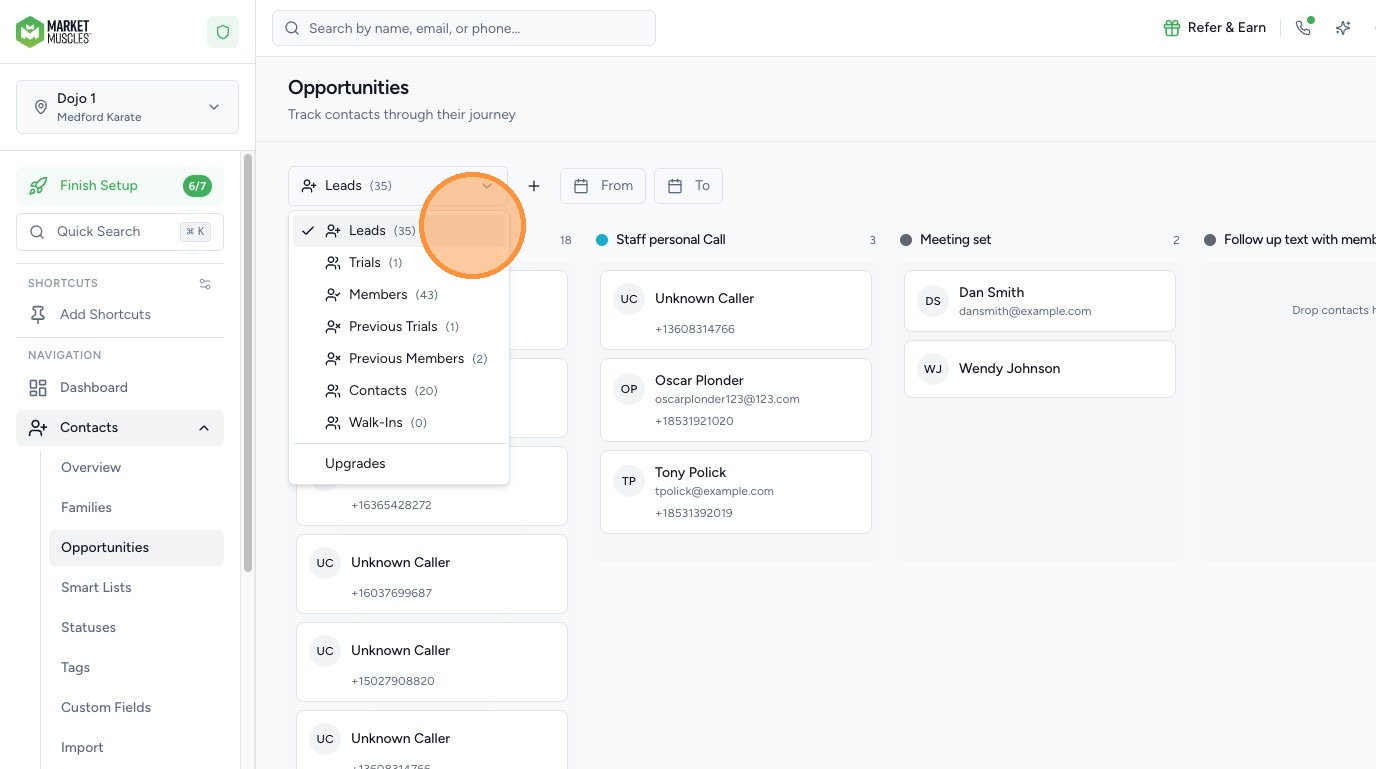
3. At the top of the page, you will see different opportunity types, such as:
- Leads
- Trials
- Memberships
- Members
- Previous Members
- Contacts
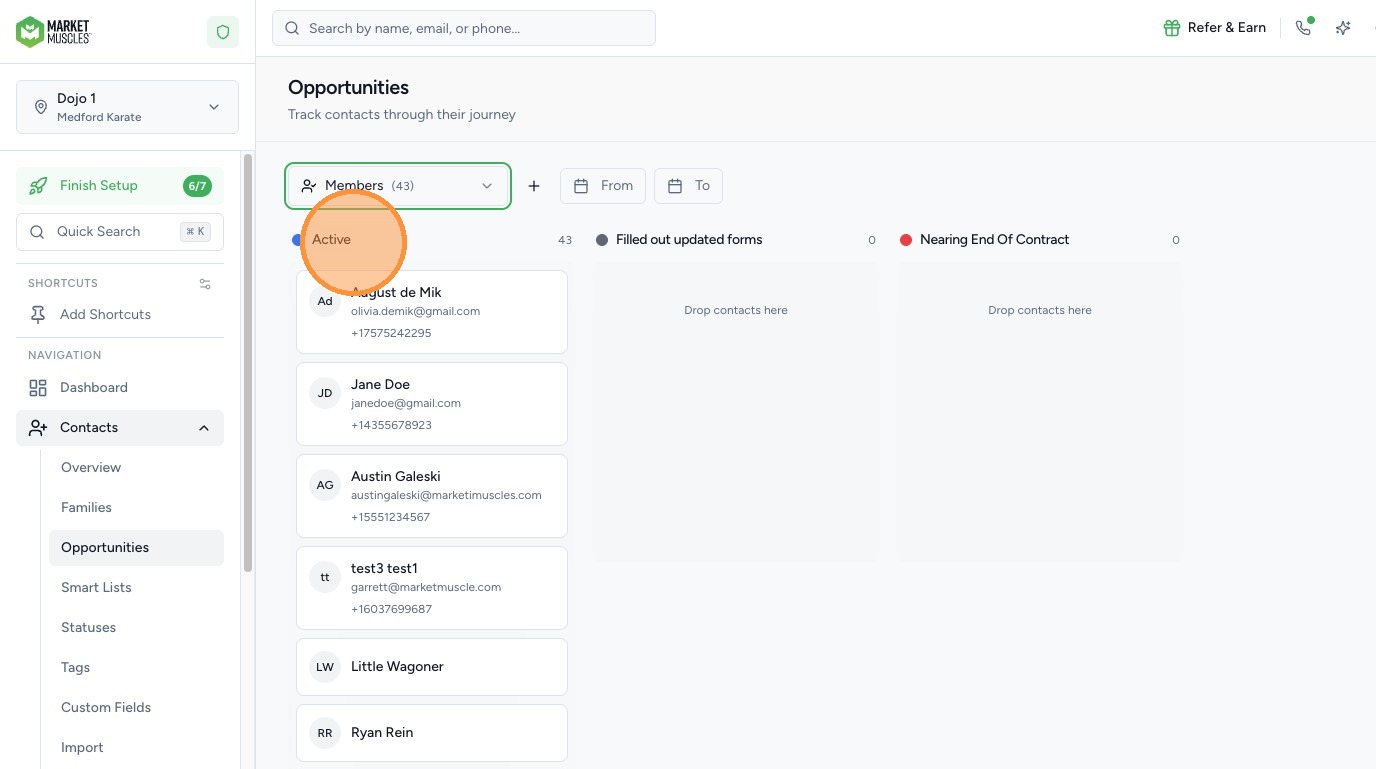
4. Understand the “Active” Status
Every contact entering the system will begin in the Active status.
- The Active status is a default system status.
- This ensures all incoming leads or contacts start at the same entry point.
5. Create & Manage Custom Statuses

On the left-hand side, you can create additional statuses to reflect your sales and onboarding process.
For example:
- Contacted
- Trial Scheduled
- Trial Completed
- Follow-Up
- Closed Won
- Closed Lost
You can create as many statuses as needed to match your internal workflow.
See the How To Create A New Contact Status In The Market Muscles CRM guide to view how to create and manage statuses.
6. Move Contacts Through the Pipeline
You can:

- Drag and drop contacts between statuses
- Move them forward or backward in your pipeline
When you move a contact to a new status:
- Their status updates in the system
- This can trigger workflows or automations
- Staff can clearly see where each person is in the journey
This creates a streamlined process for turning leads into members.
7. View & Contact Opportunities
Click on any contact within the pipeline to:
- View their information
- Click Full View Profile
- Call them directly by clicking their phone number
- Send an email by clicking their email address
This allows you to take immediate action directly from the pipeline view.