
Families
Managing Family Contact Information In Market Muscles CRM
This guide will walk you through how to use the Family section inside the Market Muscles CRM, located under the Studio Operations tab. The Family section allows you to group guardians and dependents into family units, manage memberships, and track revenue and attendance.
1. Navigate to https://app.marketmuscles.com/
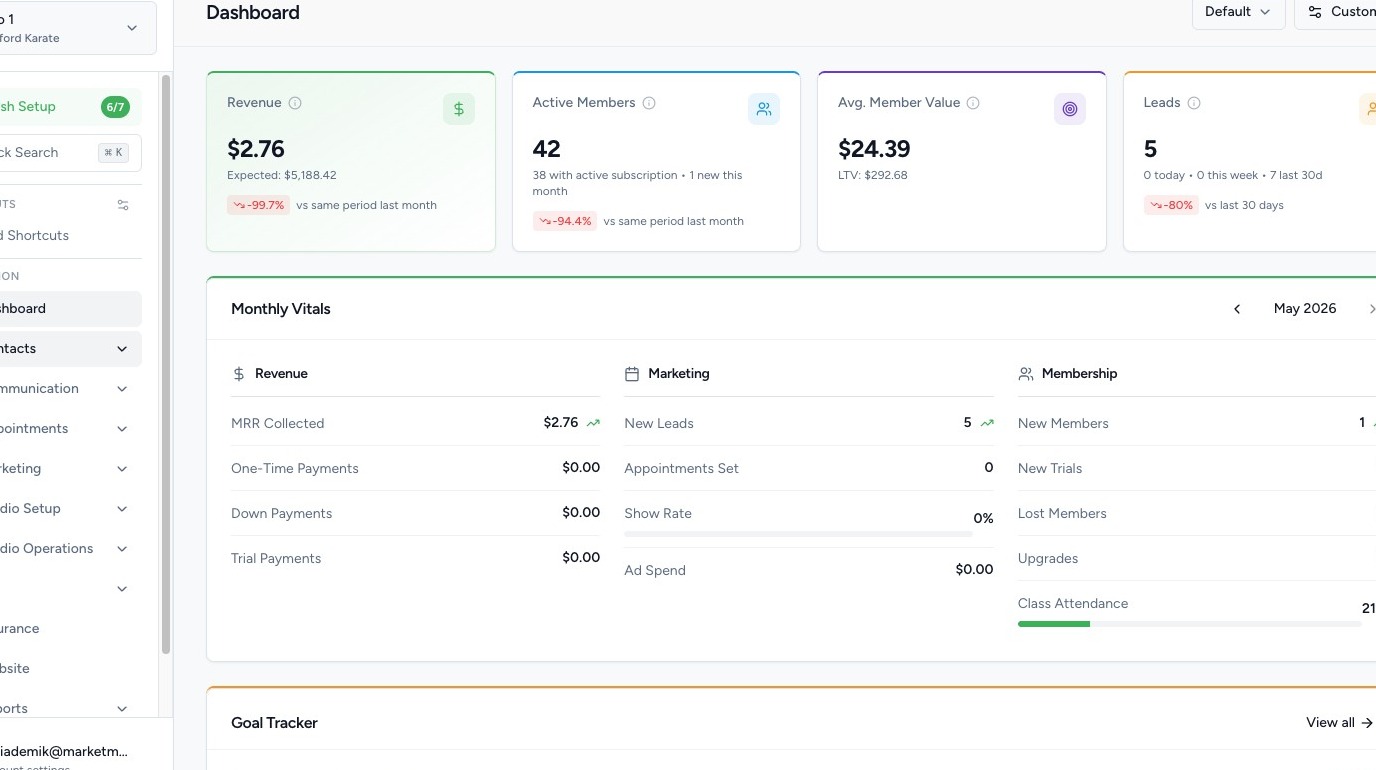
2. Select 'Contacts' then 'Families'
Once inside the Families section, you’ll see a list of all existing family units in your system.

Viewing a Family Unit

3. Click on a family name to open their Family Dashboard.
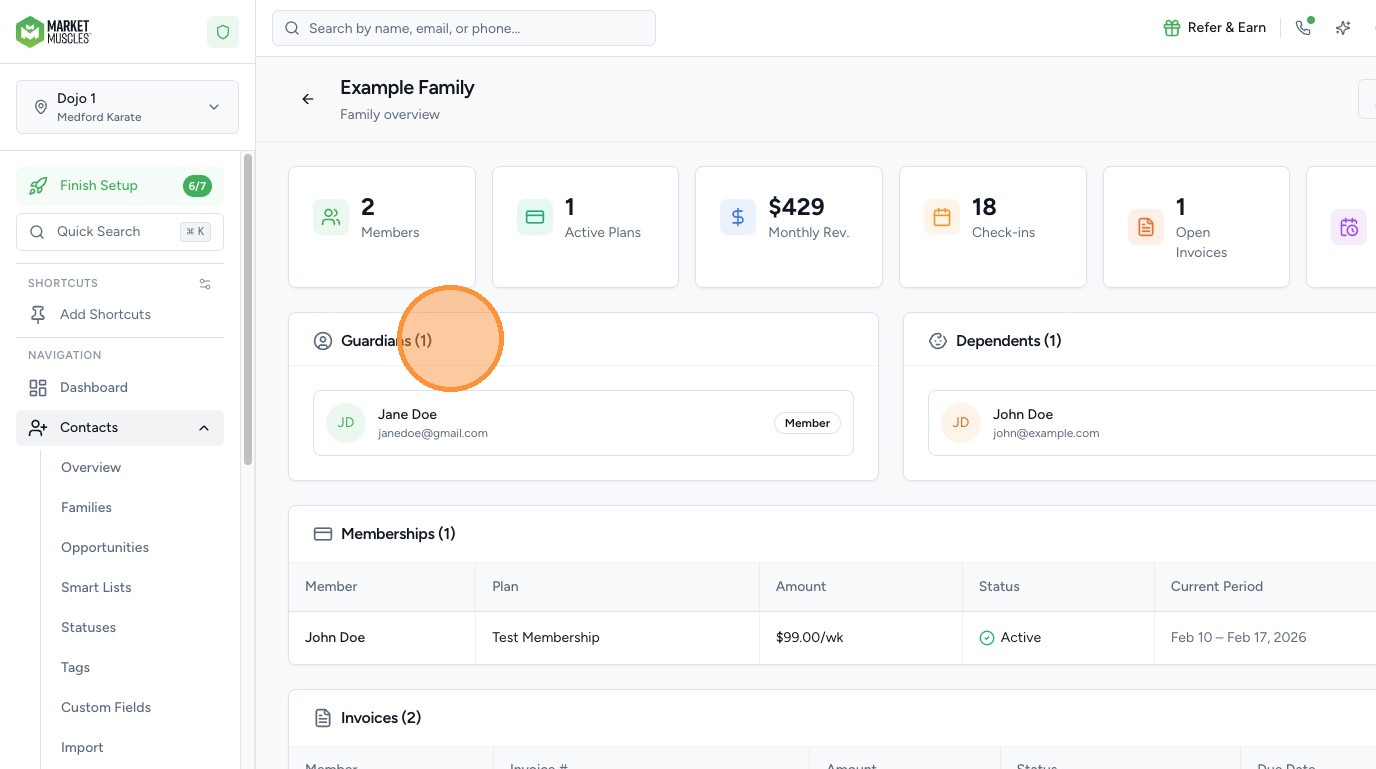
Inside the Family Dashboard, you’ll be able to view:
- Total number of family members
- Number of active membership plans
- Monthly revenue generated from the family
- Total check-ins (attendance overview)
- Guardians
- Dependents
- Membership details
- Attendance overview
This gives you a complete snapshot of the family’s activity and financial impact.
Editing a Family Unit

4. Click the Edit button inside the Family Dashboard to add or remove family members.
From here, you can:
- Identify the Primary Guardian
- Add additional guardians
- Add dependents
- Remove members from the family unit
To add someone:
- Search for the individual.
- Assign their role (Guardian or Dependent).
- Save your changes.
⚠️ Note: If a person is already part of another family unit, the system will return an error and will not allow them to be added to a second family.
Guardian vs. Dependent
5. It’s important to understand how roles function within a family unit:
- Guardians have payment methods attached to their profile.
- Dependents can use the guardian’s payment methods as long as they are connected within the same family unit.
This setup ensures that billing flows correctly while keeping participant records accurate.
Automatic Family Creation
6. When a membership is created and there is a purchaser and a participant (for example, a parent purchasing for a child), the system will automatically generate a family unit.
You can then:
- Update the family name (e.g., “Martinez Family”)
- Add additional members
- Adjust guardian/dependent roles as needed