Phone Calls
Accessing And Analyzing Phone Call Data In The Market Muscles CRM
Learn how to navigate your Phone Calls through the Communication dashboard to review call logs and analytics. This guide helps you analyze specific call details and manage your phone system settings efficiently.
1. Navigate to your Market Muscles CRM Dashboard
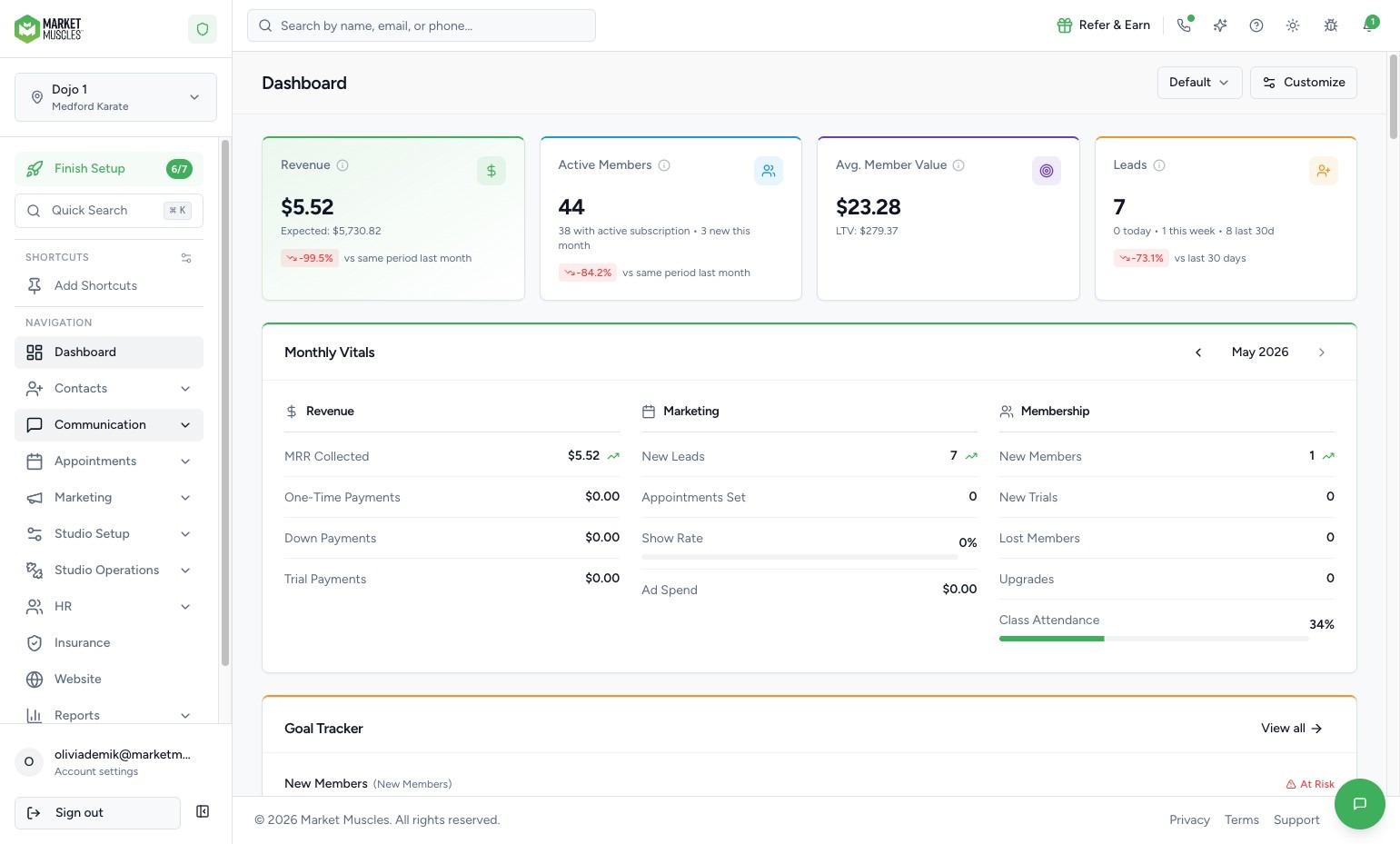
2. Navigate to Phone Calls


Click the Communication tab in the left-hand navigation menu.
Click Phone Calls.
You will land on the Overview section.
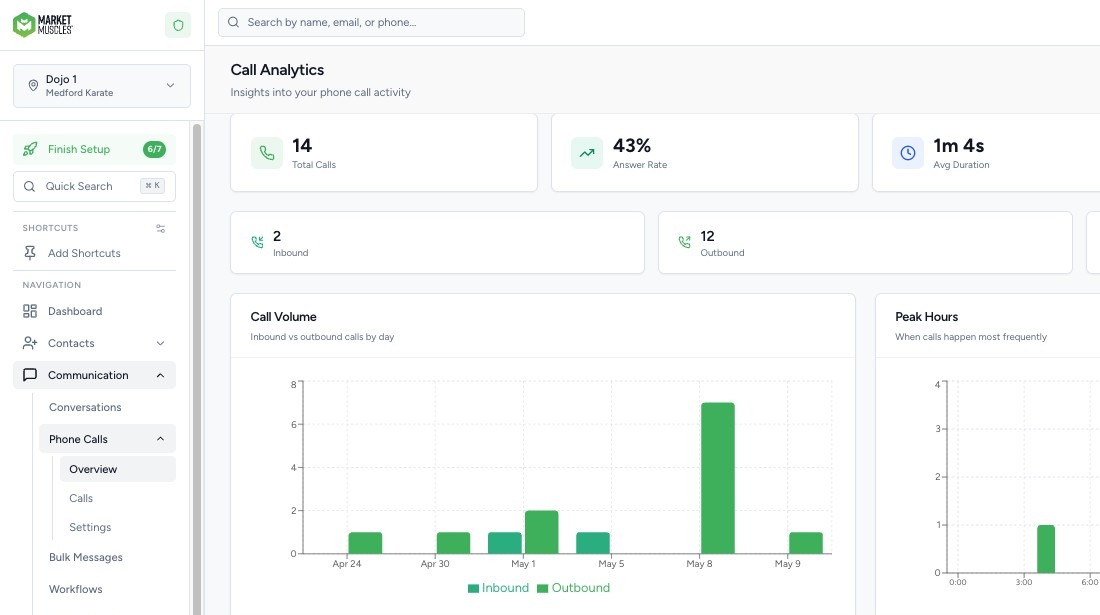
3. Review Call Overview & Analytics
In the Overview tab, you can view:
- Total Calls
- Answer Rate
- Average Answer Rate
- Total Talk Time
- Inbound Calls
- Outbound Calls
- Missed Calls
- Peak Call Hours
- Call Volume Trends
You will also see:
- Call Outcome
- Disposition Breakdown
- Scheduled Trials
- AI Answered Calls
- Categorized outcomes
This gives you a high-level view of your phone performance and team efficiency.
4. View Individual Call Logs
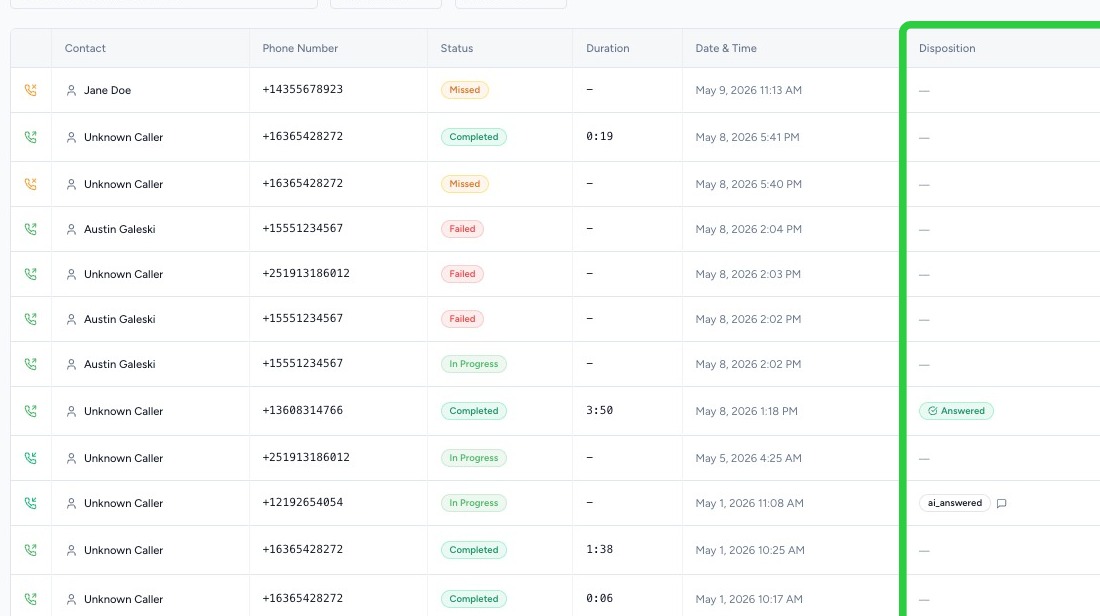
Click into the Calls tab to see a detailed list of every call.
For each call, you can view:
- Direction (Inbound or Outbound)
- Call Status
- Disposition
- Whether AI answered
- Call Duration
Click on any individual call to open its details.
5. Analyze Calls with AI

Inside a specific call record, you can:
- Click Analyze Call
- Generate an AI transcript
- Listen to the call recording
You will also see:
- AI-generated Call Summary
- What Went Well
- Areas for Improvement
- Overall Score
- Category Breakdown
This helps you review staff performance and improve call handling.
6. Review Voicemails & Call Status
If a call resulted in a voicemail:
- You can view and analyze the voicemail
- Categorize outcomes
- Review direction and disposition
This ensures no missed opportunities are overlooked.
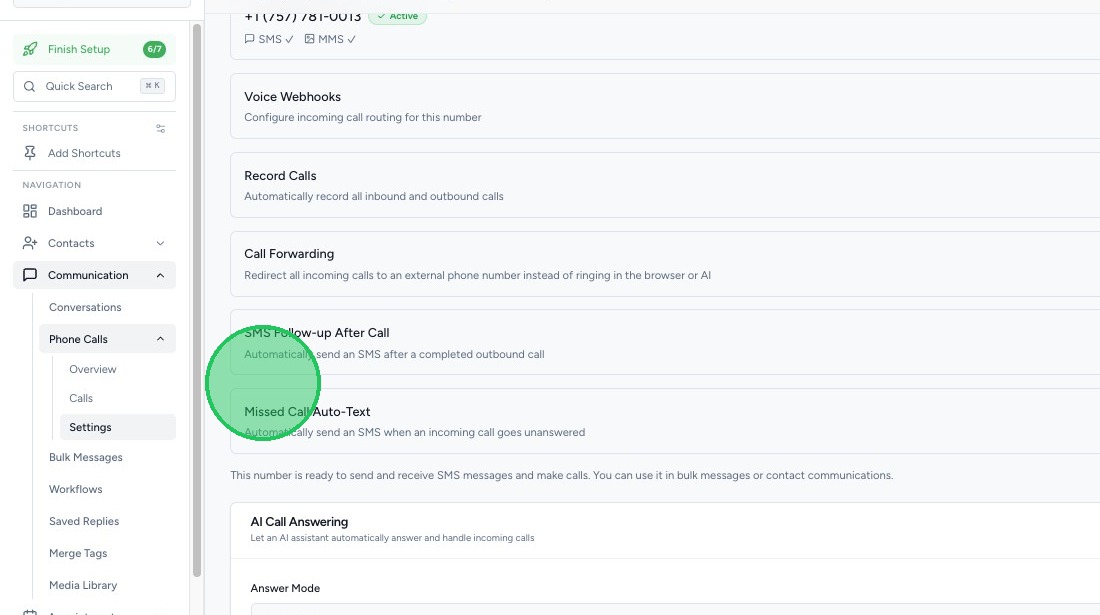
7. Configure Phone Call Settings

Click into the Settings tab within Phone Calls.
Here you can configure:
Call Recording
- Enable or disable call recording
- Automatically notify callers if recording is required (mandatory in certain states)
Call Routing & Voice Settings
- Configure incoming call routing
- Add voice prompts
- Set ring duration before AI answers
- For example: If no one answers within 20–25 seconds, AI can automatically pick up.
Voicemail Settings
You can:
- Upload or record a custom voicemail greeting
- Configure what happens when calls go to voicemail
8. SMS Follow-Up Automation
Automatically send SMS messages:
- After a completed outbound call
- After a missed call
This ensures follow-up communication happens consistently.
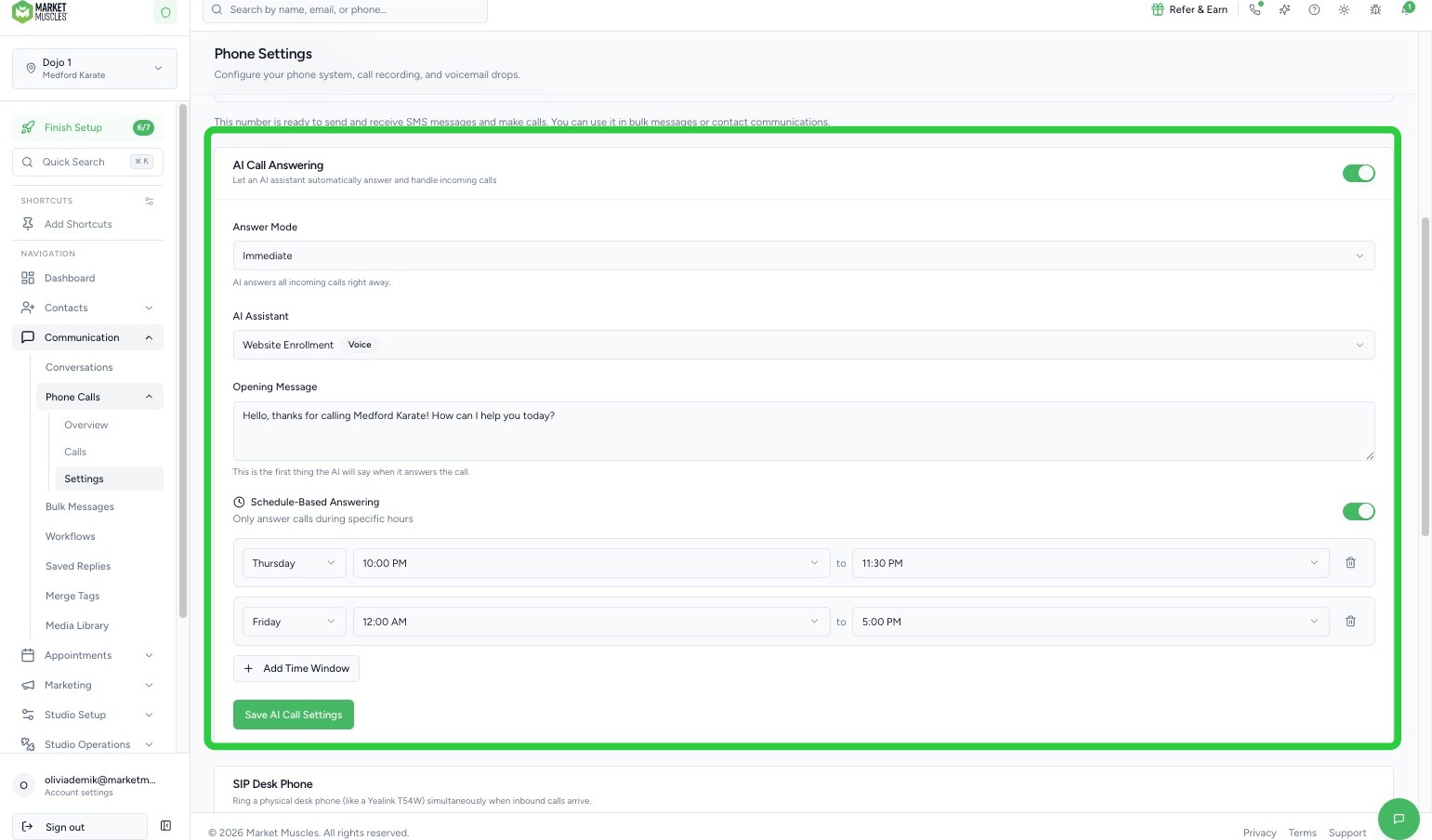
9. AI Call Answering
You can choose:
- Immediate AI answering
- AI as a backup after no answer
- Select which AI Assistant handles calls
- Customize the AI Opening Message