Conversations
Conversations in the Market Muscles CRM
Learn how to navigate your communications dashboard to respond to incoming inquiries manually. This guide helps you effectively manage and reply to client conversations in all formats through the Market Muscles platform.
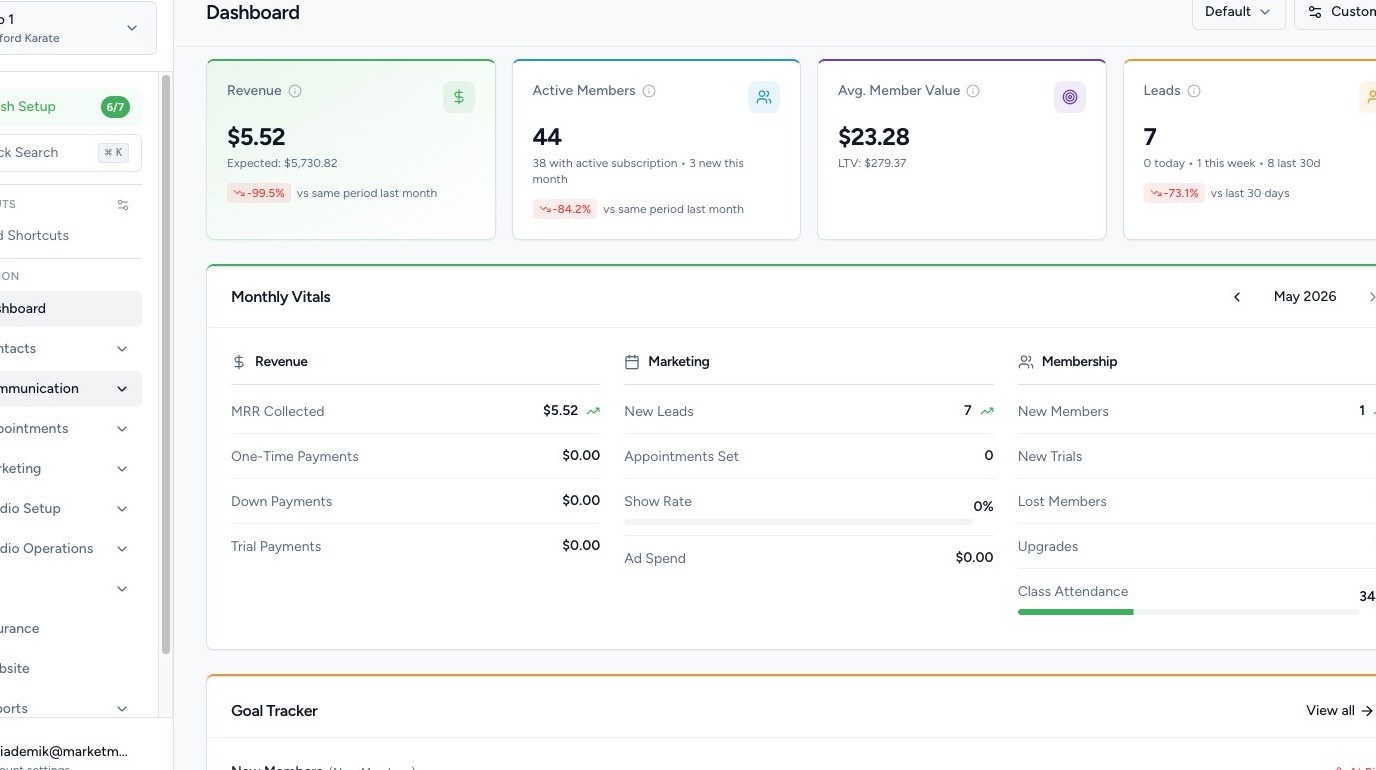
1. Navigate to your Market Muscles CRM Dashboard

2. Navigate to Conversations

Click the Communication tab in the left-hand navigation menu.
Click Conversations.
This is where you will see all forms of conversations in your system.
3. Manage Message Tabs
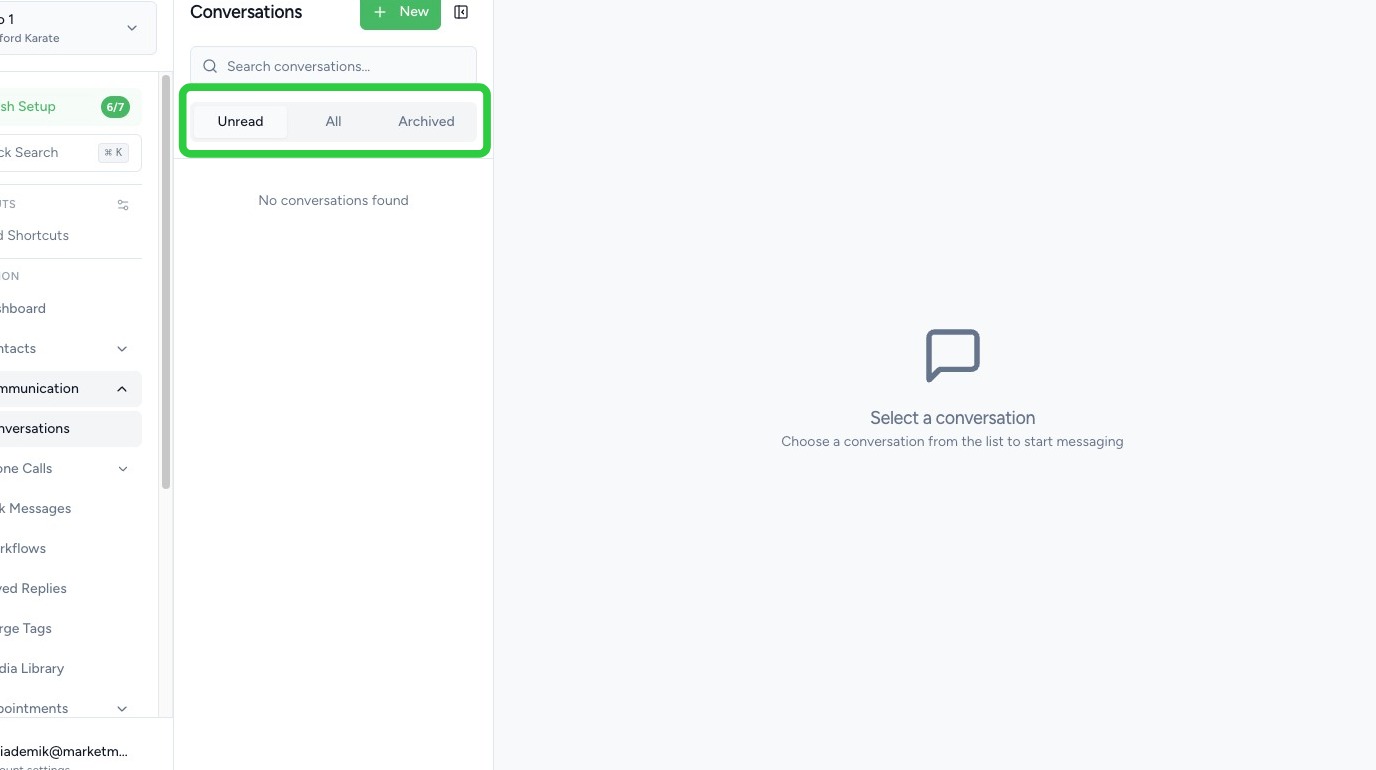
At the top of the Conversations section, you can filter messages by:
- Unread – Messages that have not been viewed
- All – All conversations
- Archived – Conversations that have been archived
If a message is archived:
- It will move to the Archived tab
- You can restore it at any time
4. View Conversation Details

When you click into a conversation, you will see:
- Incoming messages (SMS & Email)
- Outgoing messages
- Call logs
- Sent images
- Any additional message activity
You can view all communication history with that contact in one place.
5. Hide Automated Messages
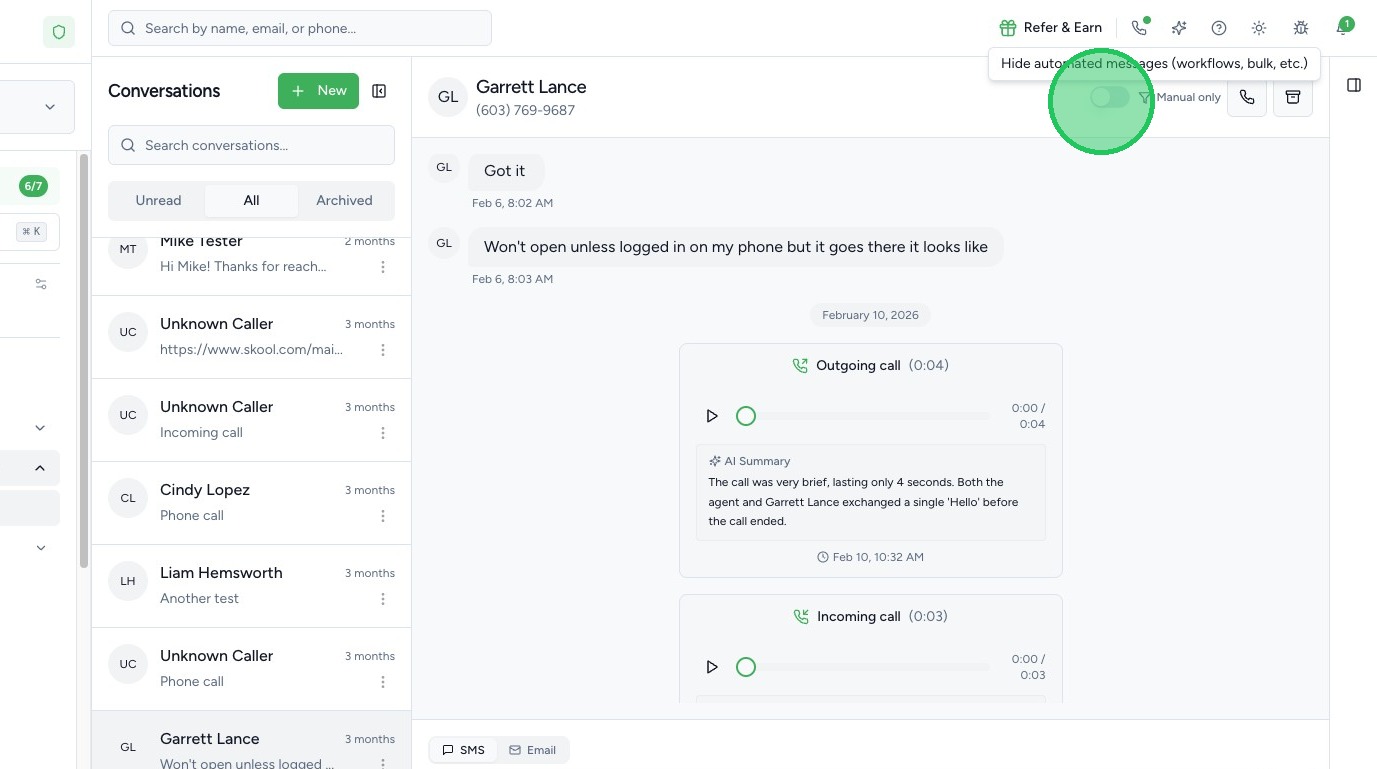
If you only want to see manual communication:
- Toggle the option to Hide Automated Messages
This will remove workflow or automation-based messages from view, allowing you to focus only on direct conversations.
6. Take Action from Conversations
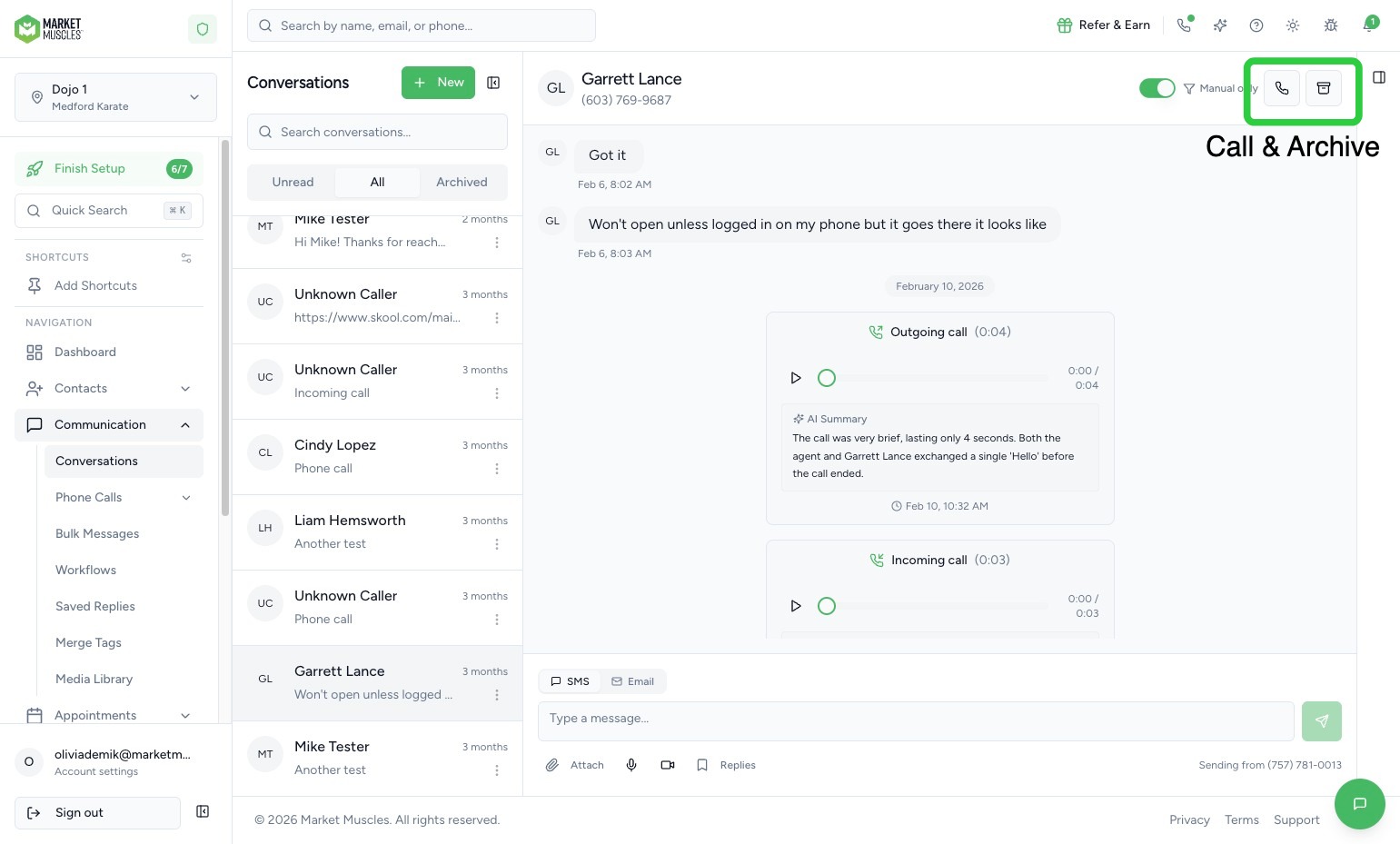
Inside a conversation, you can:
- Click the Call button to place a call
- Click Archive to move the conversation out of your main view
- Restore archived conversations at any time
7. Send Messages & Attachments
When replying to a conversation, you can:
- Type and send SMS messages
- Attach images
- Use Saved Replies
Saved replies allow you to quickly insert pre-written responses.
You can also type a forward slash ( / ) to quickly pull up and insert a saved reply.