
Duplicate Contacts
How To Scan For Duplicate Contacts
Learn how to efficiently locate and manage redundant entries within your CRM dashboard. This guide walks you through the scanning process to ensure your contact list remains clean and organized.
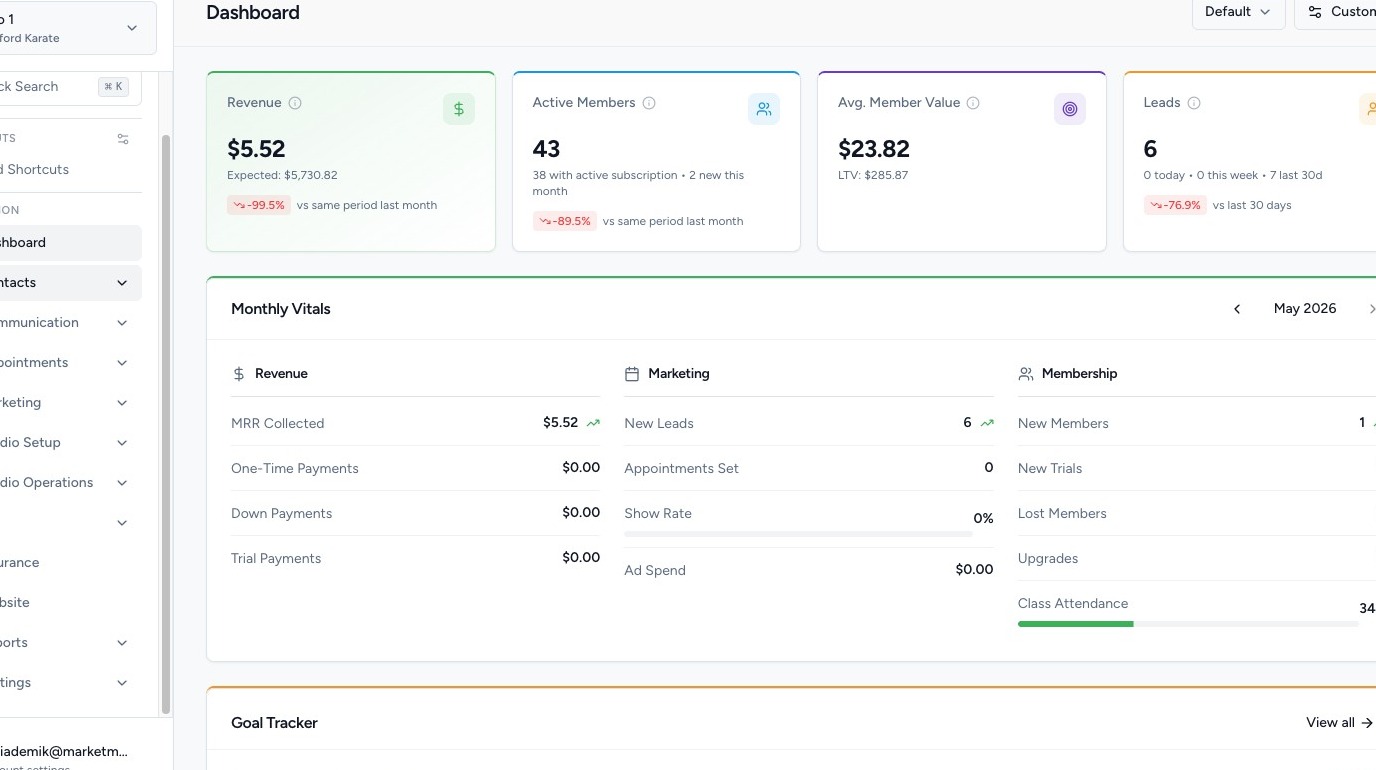
1. Navigate to https://app.marketmuscles.com/
2. Navigate to Duplicate Contacts

Click the Contacts tab in the left-hand navigation menu.
Click Duplicate Contacts.
3. Run a Duplicate Scan
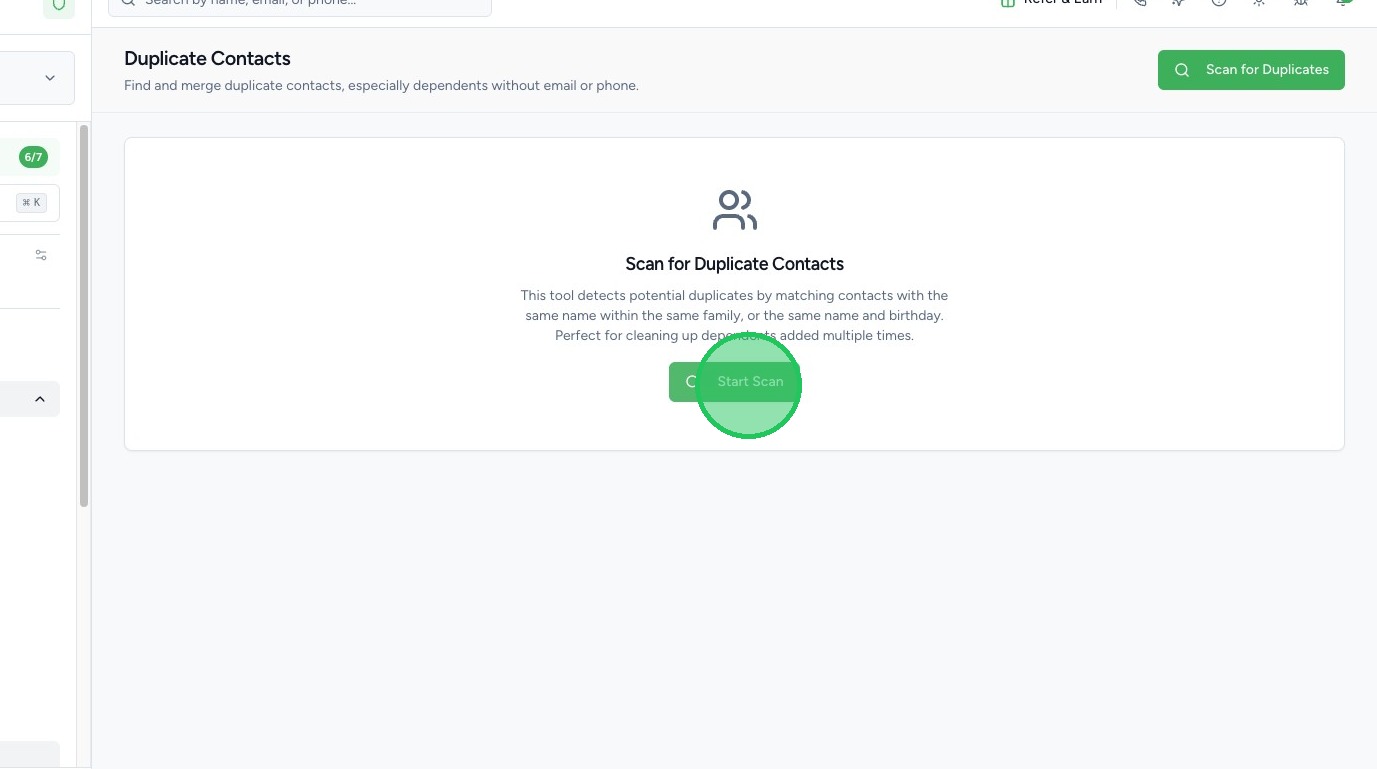
Click Start Scan.
The system will automatically:
- Scan your database for duplicate contacts
- Identify records that may share the same key information (such as email addresses)
4. Review & Merge Duplicates
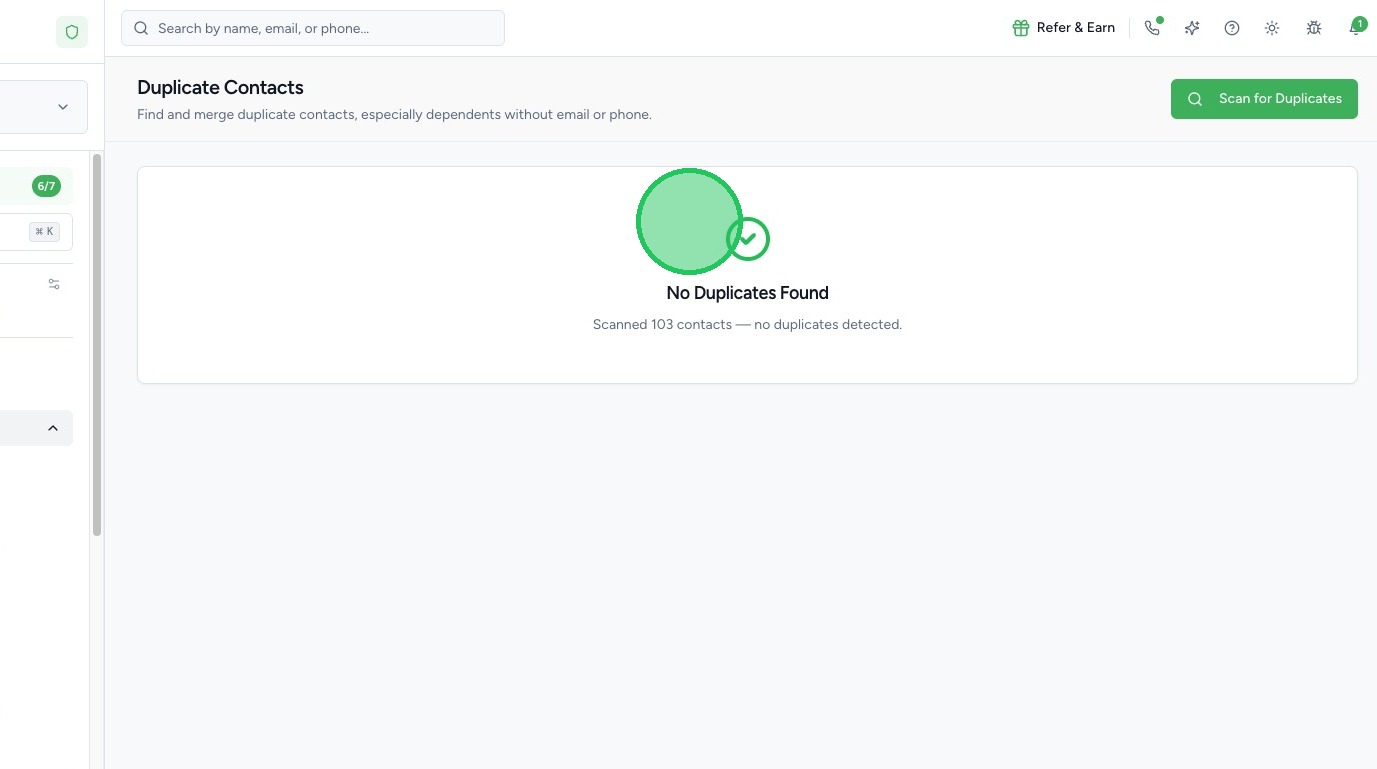
Once the scan is complete, the system will:
- Display potential duplicate matches
- Prompt you to review them
- Allow you to merge duplicate records
When merging:
- Contact records are combined
- Data is consolidated into a single profile
- Duplicate entries are removed
5. Why This Is Important
The most important unique identifier in your CRM is typically the email address.
If you have:
- Two contacts with the same email
- Duplicate entries for the same person
It’s best practice to merge them into one record. This ensures:
- Clean data
- Accurate reporting
- Proper automation triggers
- No duplicate messaging