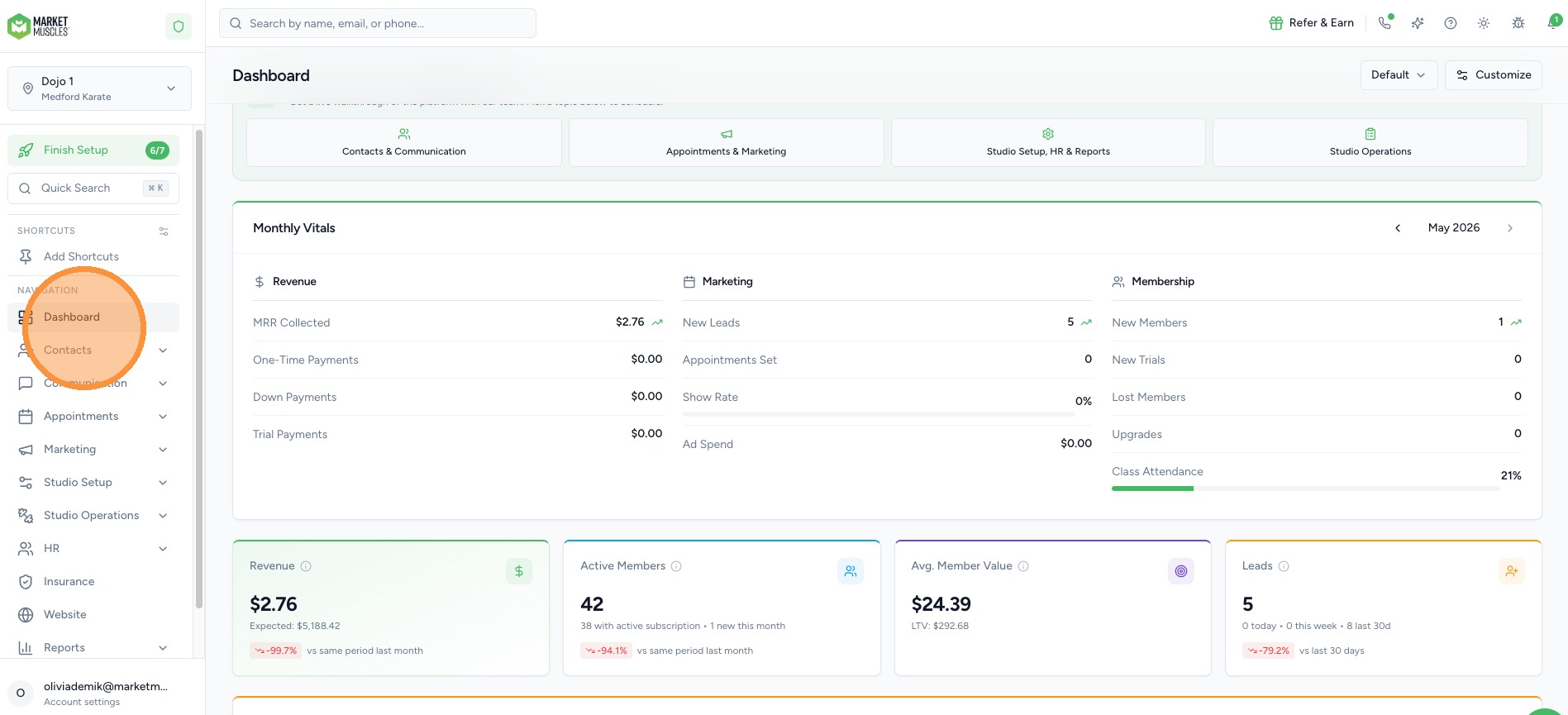
Dashboard At A Glance
Market Muscles CRM Dashboard at a Glance
Learn how to effectively manage your Market Muscles CRM Dashboard by exploring key tools like referral links, AI coaching, and support resources. This guide helps you maximize your operational efficiency by demonstrating how to navigate features, customize your workspace, and access training materials.
1. Navigate to your CRM Dashboard https://app.marketmuscles.com/
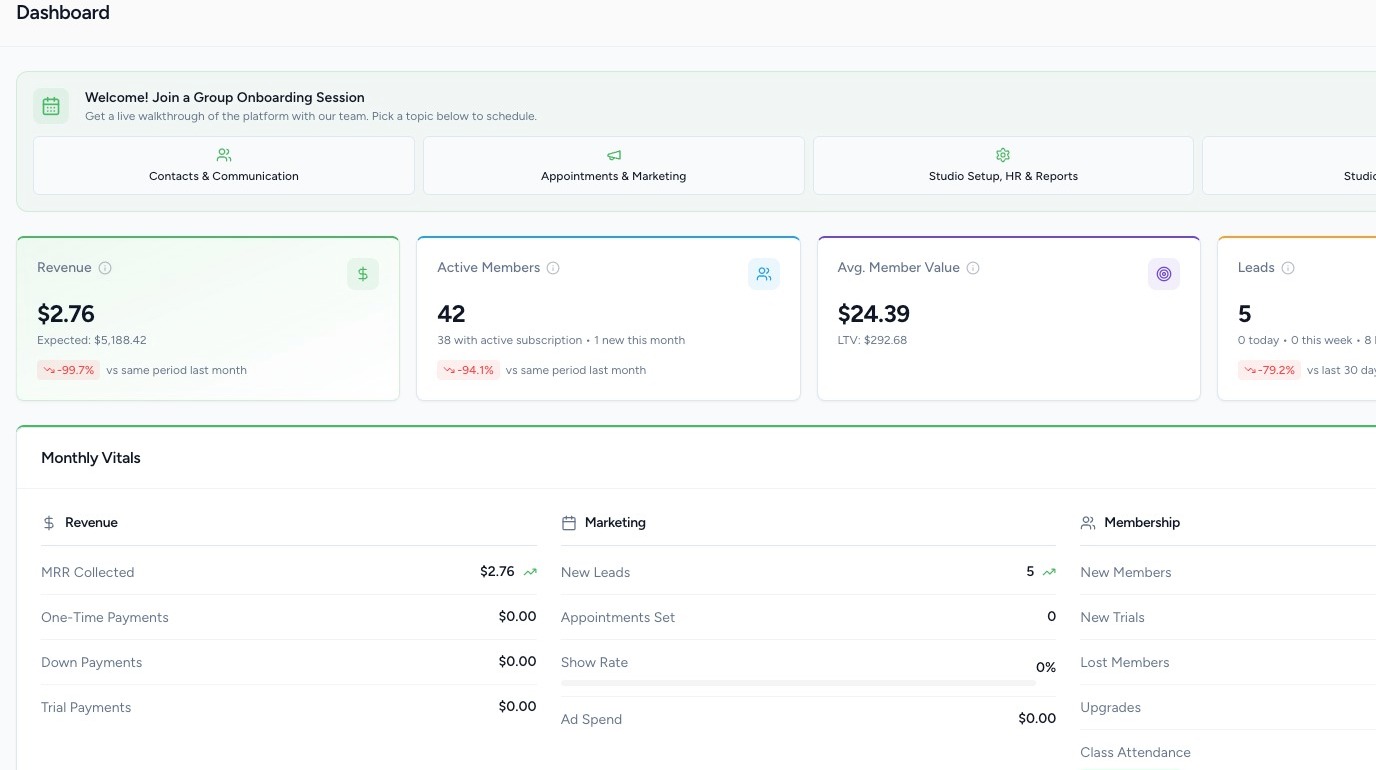
Navigation Icons
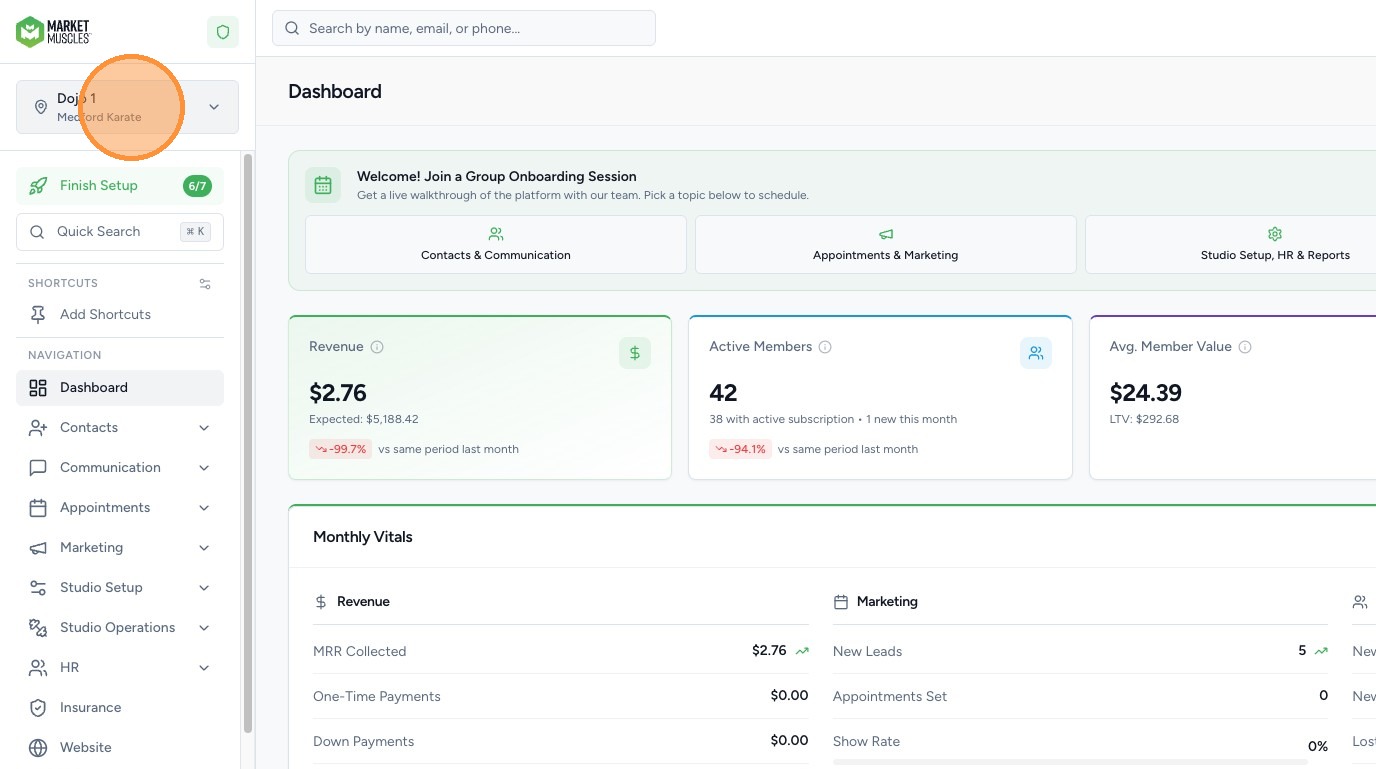
Location Selector
2. - Location Selector – If you have multiple locations, you can switch between different locations in your account using the location selector tool.
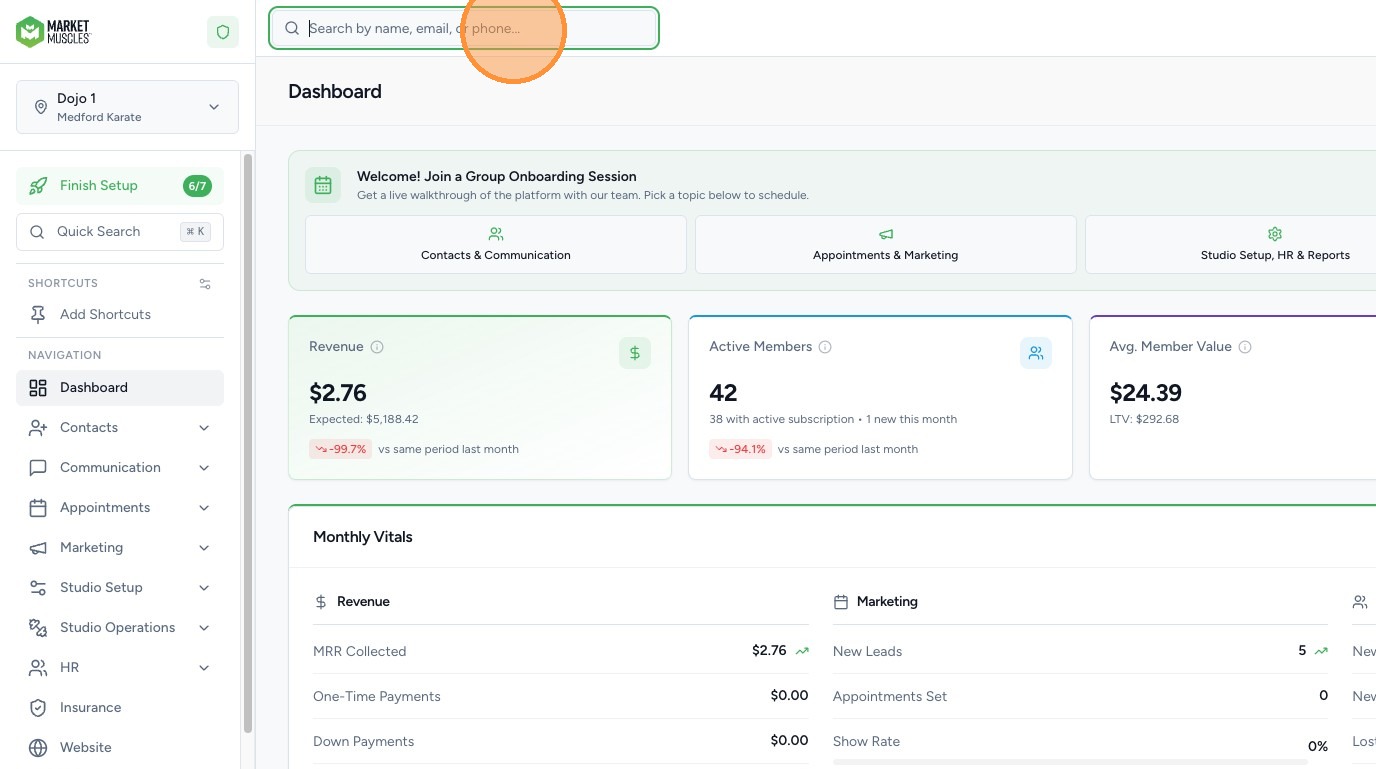
Contact Search
3. - Contact Search – Search for any contact in your system and quickly access their profile.

Refer & Earn
4. Refer & Earn- Click "Refer & Earn". Access your referral link to share with others in your organization. When someone signs up using your link, your progress will be tracked in the prize ladder displayed in this section.

Phone
5. - Phone Button – Dial outbound calls or search for a contact to call directly.
- The number at the top is your assigned Twilio phone number
- When the system shows “Ready,” you can:
- Make outbound calls
- Receive inbound calls
- Receive emails
- You can utilize the Dialpad or search your current Contacts.

Kai, Your AI Business Coach
6. Use Kai (AI Assistant for Coaching & System Building
Kai has been updated in the new CRM and provides:
- Coaching prompts
- Quick wins
- Workflow creation
- Membership setup assistance
- System-building guidance
You can also review your conversation history within this section.
Support and Help Resources
7. Support-
Our support team is here to help! We aim to respond to all inquiries within 24 hours, Monday through Friday. Most requests are resolved within 72 business hours, depending on complexity. If you have an urgent matter, simply include '911' in your email subject line, and we'll prioritize it right away.
Three ways to reach us:
- Open a Ticket
- Live Chat
- Schedule a Call

8. Support-
Group Onboarding Sessions are available weekly. You can schedule your next Onboarding here to get more familiar with the CRM.
- Contacts & Communication — learn how to manage contacts, send emails and SMS, and set up workflows
- Appointments & Marketing — learn how to configure schedulers, forms, and marketing tools
- Studio Setup, HR & Reports — learn how to set up your studio, manage staff, and run reports
- Studio Operations — learn how to manage memberships, billing, scheduling, and attendance
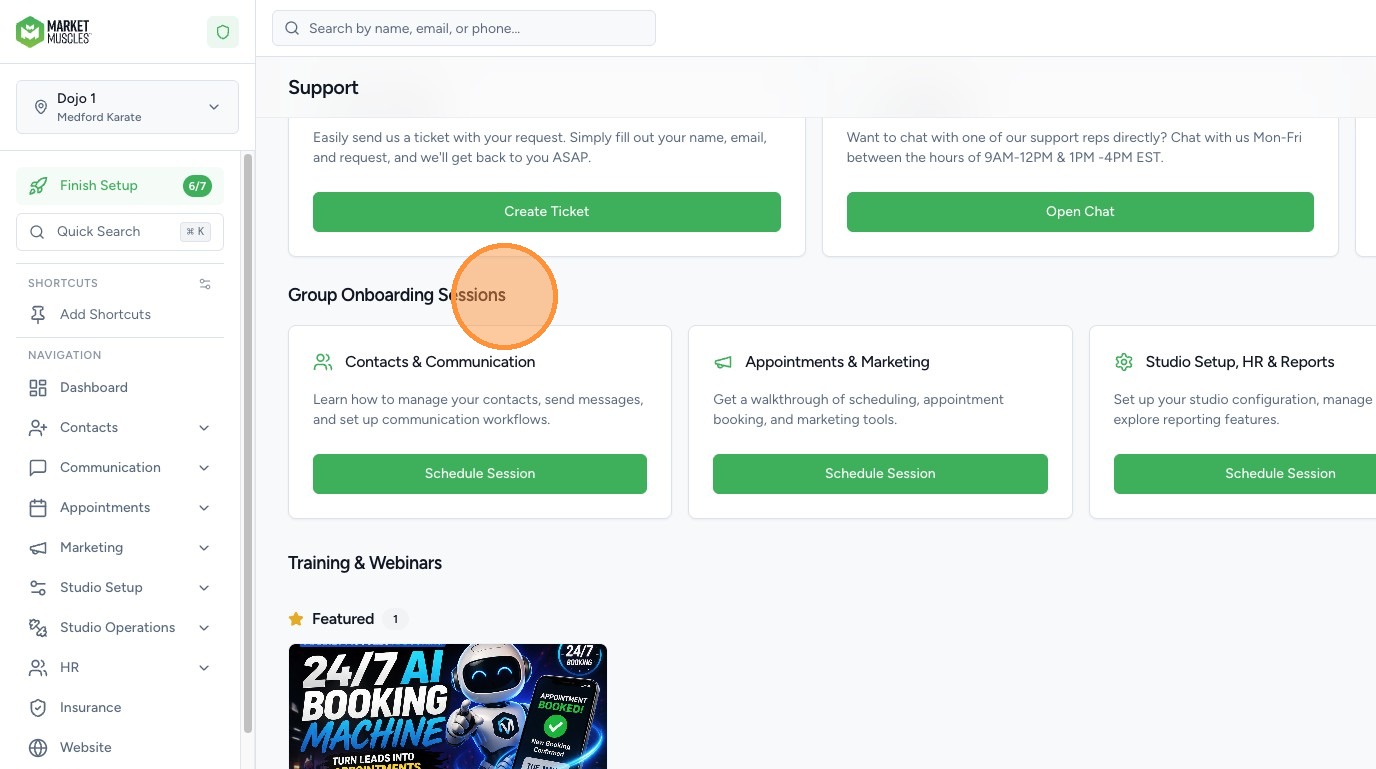
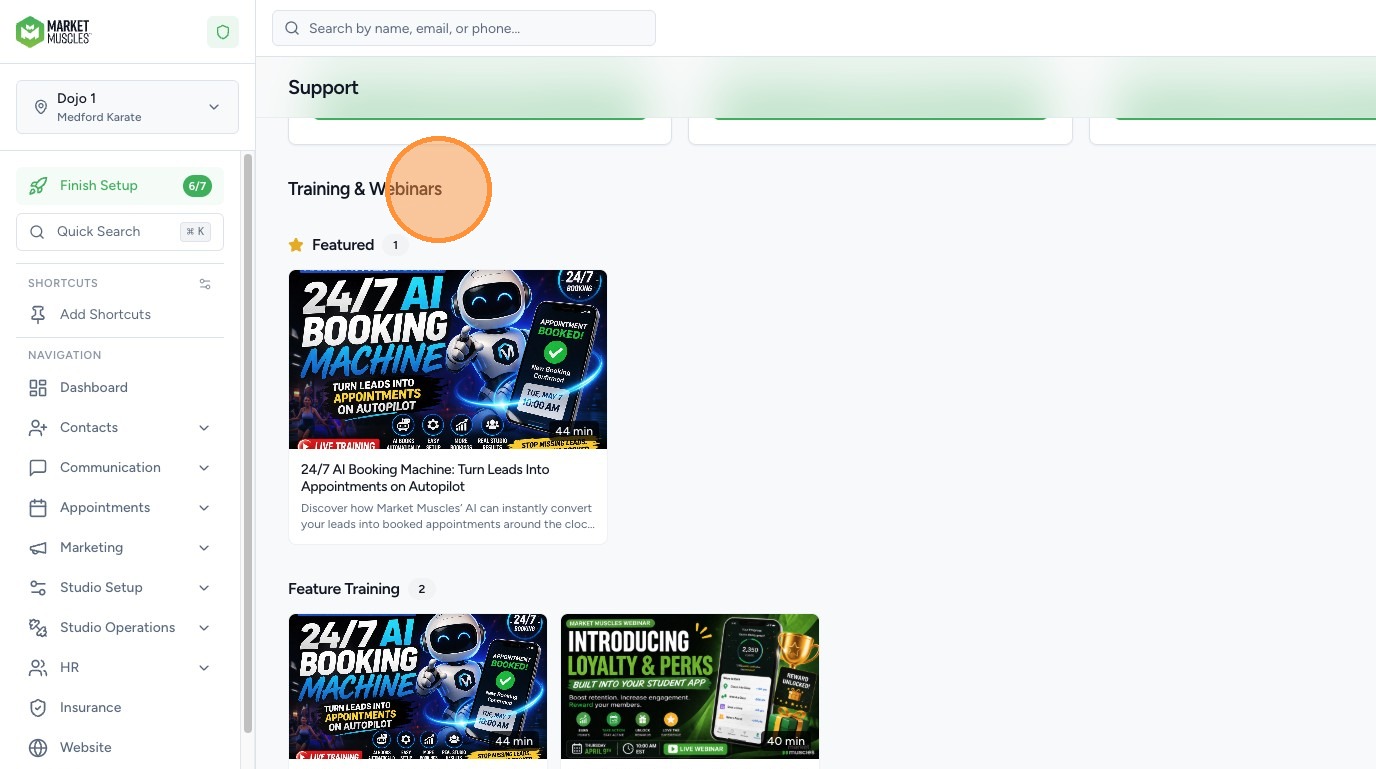
9. Support-
Trainings and Webinars: As new features are added to the CRM, we will often update this area with instructional videos to walk you through the features and help you enhance your user experience.
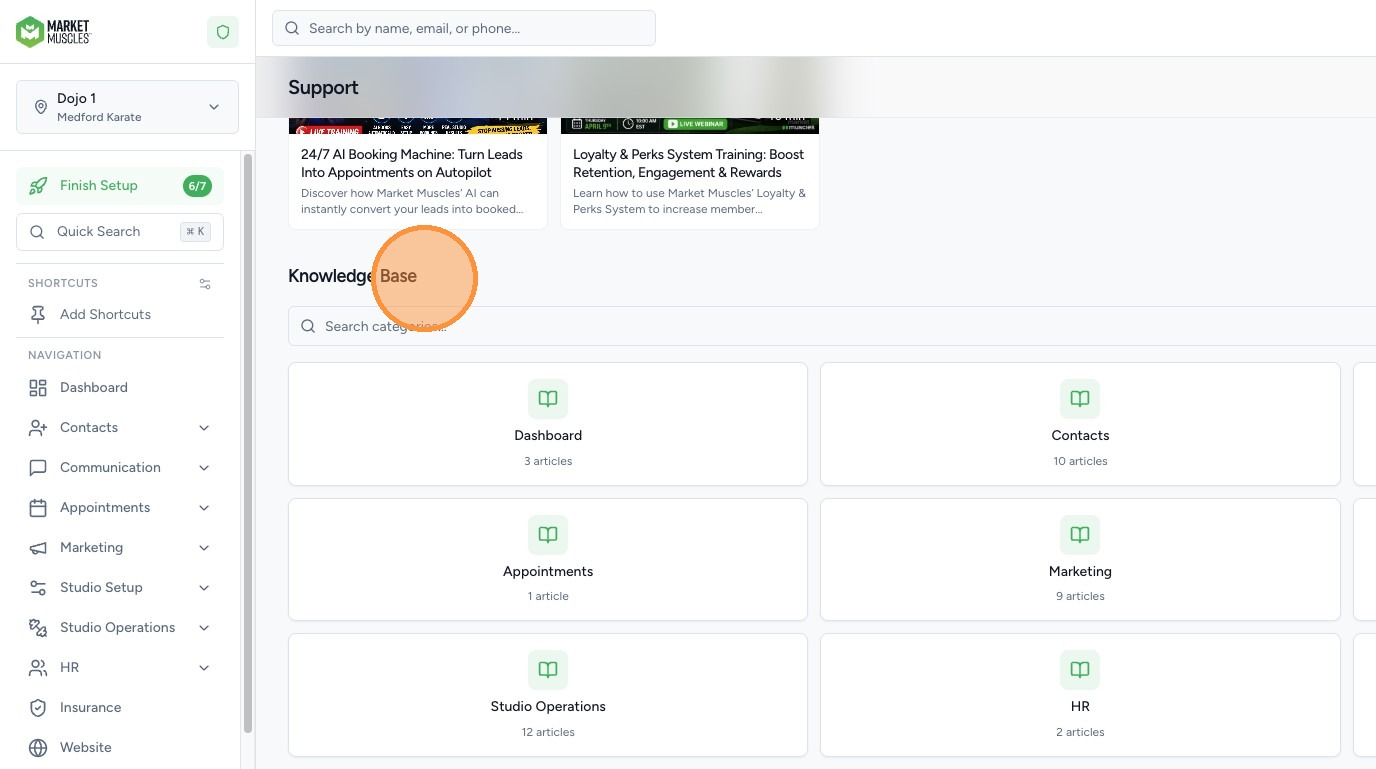
10. Support-
Knowledge Base: Here we have step-by-step instructions for key features of the CRM. We update these often, so please feel free to check here if you need quick reference tools.

Light & Dark Modes
11. Toggle between Light and Dark mode based on your preferences.
Report a Bug

12. - Report a Bug
- Submit a bug report or issue.
- Attach screenshots or files.
- You’ll receive an email confirmation once submitted.
If something in the system is not working like it usually does or seems off, you can report a bug to our team and we will look into it for you quickly!
Notifications

13. - Notifications
- View important updates happening in your system.
- Click a notification to go directly to the referenced area.
- All historical notifications will stay in the "read" tab
Dashboard at a Glance
Dashboard Customization
14. Customize Your Dashboard
The Dashboard is user-based:
- Each user has their own dashboard.
- You can create multiple dashboards.
- You can toggle widgets on or off.
- You can reset the layout back to default at any time.
If a staff member does not have permission to view certain data (such as revenue), those widgets will not appear for them.
Understand Dashboard Widgets
Your Dashboard includes powerful widgets to track performance and activity, including:
- Memberships
- Monthly Vitals (toggle between months)
- Revenue Goal Tracker
- Daily Collections
- Upcoming Appointments
- Membership Growth
- Conversion Funnels
- Attendance
- Lead Pipeline
- Active Workflows
- Trial Trackers
- Classroom Popularity (by attendance)
- Social Posts
- Tasks
- Custom Pipelines
You can organize and customize these widgets across multiple dashboards to focus only on the metrics that matter most to you.
15. Learn the Navigation

The left-hand sidebar is your main navigation. Here is a quick overview of each section:
- Dashboard — your studio's performance snapshot
- Contacts — manage leads, trials, members, families, smart lists, tags, and custom fields
- Communication — manage conversations, phone calls, bulk messages, workflows, saved replies, and merge tags
- Appointments — manage calendars, bookings, and appointment schedulers
- Marketing — manage forms, AI assistants, referral programs, Facebook ads, social posts, digital signage, reputation, social proof, and embed tools
- Studio Setup — configure agreements, ranks and rosters, class management, products, curriculum, rewards and perks, and the student portal
- Studio Operations — manage attendance, finances, events, seasonal programs, birthday parties, and tasks
- HR — manage staff profiles and timekeeping
- Reports — run revenue, membership, attendance, and custom reports
- Settings — configure general settings, billing, users and roles, integrations, and API access